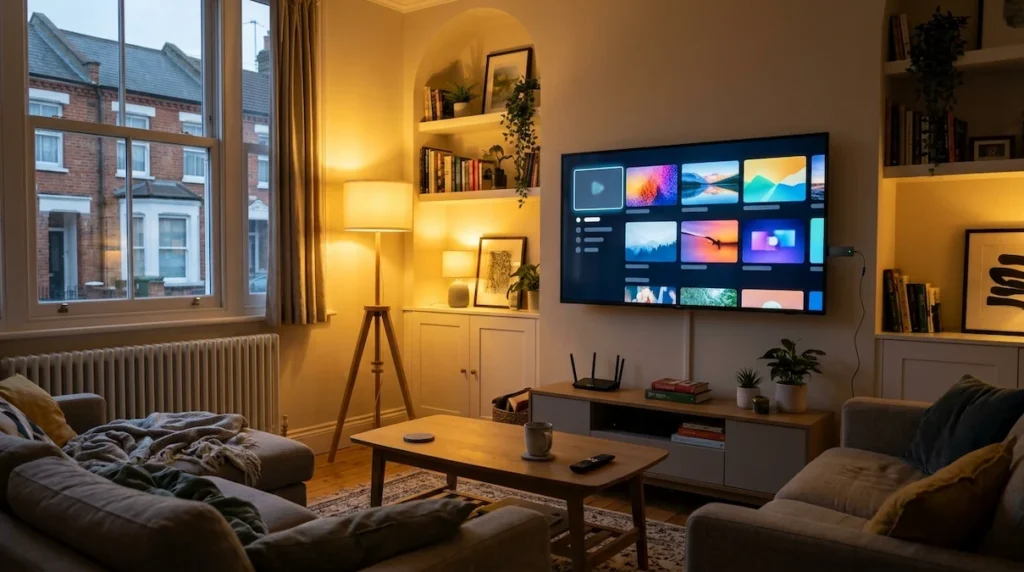
IPTV Smarters Pro is one of the most popular IPTV player apps in the UK, known for working across almost every device and for a simple, beginner-friendly setup. Like any player, it does not include channels of its own, so you add your own playlist and it does the rest.
This guide explains what the app does, how to install it on a Firestick, Android, iPhone and Smart TV, how to add an M3U or Xtream Codes playlist, and how to fix the issues people run into most often.
In short: IPTV Smarters Pro is a free media player that streams live TV, films and series from a playlist you supply. It supports M3U and Xtream Codes, runs on Firestick, Android, Smart TVs and more, and includes a TV guide. It does not provide any channels, so you need your own subscription.
Key Takeaways
- The app is a player only. You supply the playlist from your own provider.
- It is free to download and popular for its wide device support.
- It supports M3U playlists and the Xtream Codes API, with an EPG TV guide.
- It runs on Firestick, Android, Smart TVs and computers; on iPhone the Lite version is used.
- Setup takes minutes once you have your playlist or Xtream Codes details.
Table of Contents
- What Is IPTV Smarters Pro?
- IPTV Smarters Pro Features
- Supported Devices
- How to Set Up IPTV Smarters Pro
- Adding Your Playlist
- IPTV Smarters Pro vs Smarters Player Lite
- Troubleshooting and FAQ
What Is IPTV Smarters Pro?
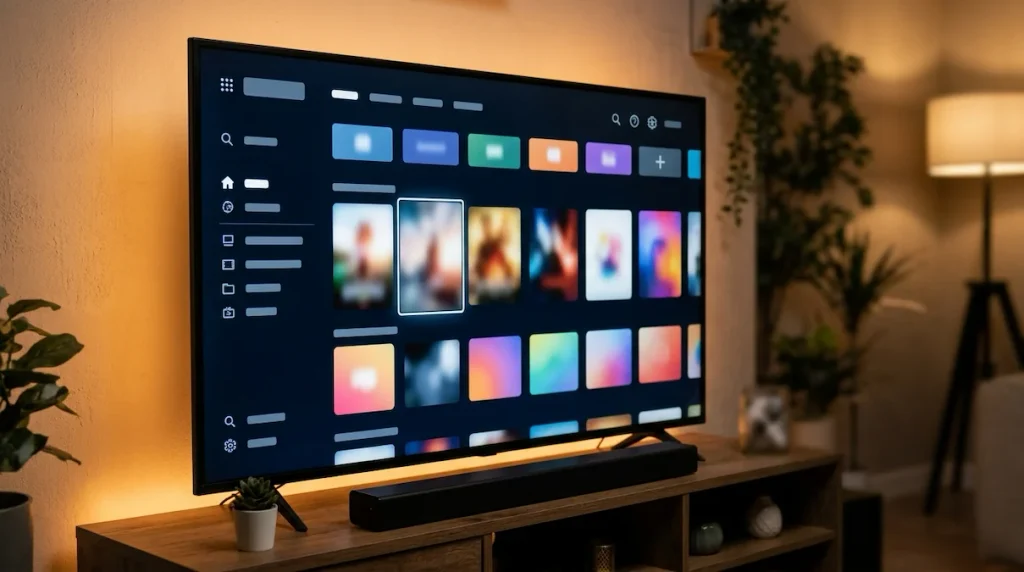
IPTV Smarters Pro is a media player from the Smarters team that plays live TV, films and series from a playlist you provide. It does not include any channels itself. Instead, it reads your subscription details and sorts everything into tidy sections for live TV, movies and series.
Its popularity comes from two things: it runs on almost every device, and it is easy for beginners. You add your playlist once, and the app builds a clean, familiar layout that is simple to navigate with a remote.
IPTV Smarters Pro Features
The app covers what most viewers need without feeling cluttered:
- M3U and Xtream Codes support: add your service with a playlist link or Xtream Codes login.
- Live TV, films and series: content is organised into clear categories.
- EPG support: an electronic programme guide shows what is on now and next.
- Multi-device: the same familiar layout across phones, TVs and sticks.
- Parental controls: lock sections you do not want others to open.
- External player support: hand a stream to another player if a format needs it.
Supported Devices
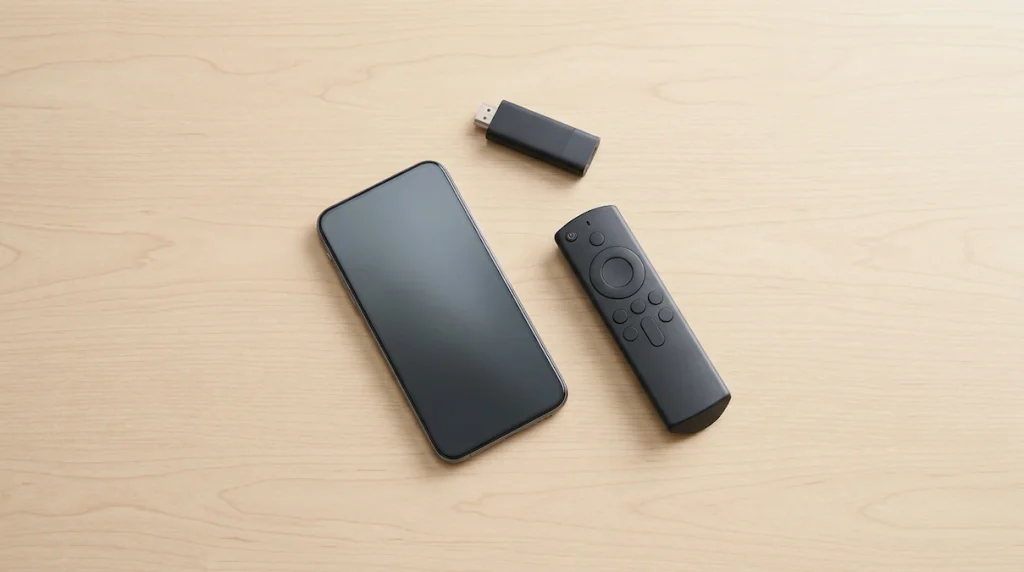
Wide device support is the app’s biggest strength. Exact availability can vary by version, so check your device’s store.
| Device | Availability |
|---|---|
| Amazon Firestick / Fire TV | Amazon Appstore or sideload |
| Android phones, tablets, TV | Google Play / Android TV |
| iPhone and iPad | Smarters Player Lite on the App Store |
| Smart TVs and computers | Depending on model and version |
How to Set Up IPTV Smarters Pro
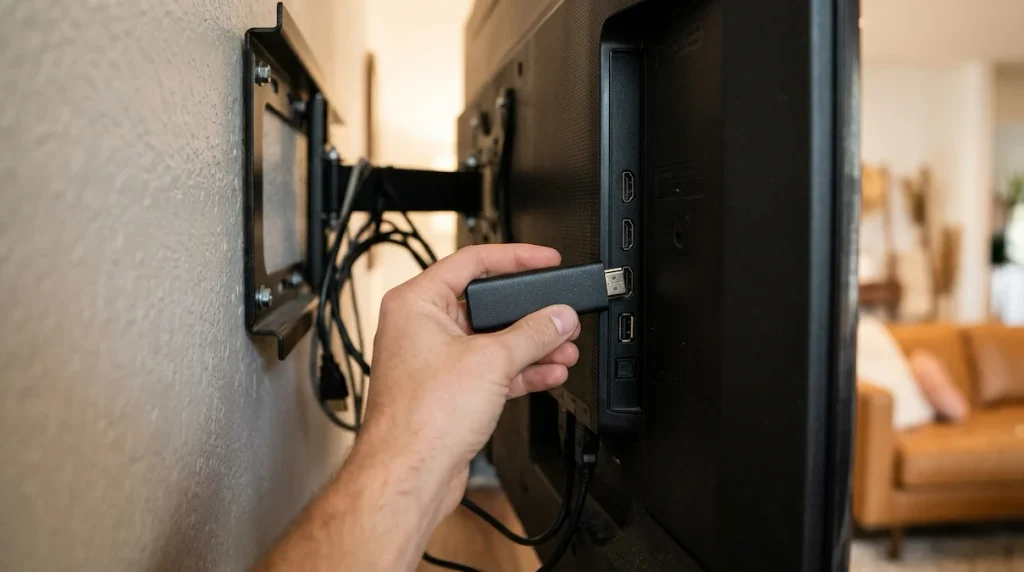
Setup is quick once you have your playlist to hand. The steps are similar across devices.
On Firestick or Fire TV
- Search the Amazon Appstore for the app, or sideload it with the Downloader app.
- Install and open it, then accept the terms. Our Fire TV Stick setup guide covers sideloading.
- Add your playlist (next section) and start watching.
On Android
- Open the Google Play Store and search for the app.
- Install it, open it and accept the terms.
- Add your M3U or Xtream Codes details to load your content.
On iPhone and iPad
On Apple devices, the same developer offers Smarters Player Lite on the App Store. The setup is the same idea, and our Smarters Player Lite guide walks through it step by step.
Adding Your Playlist
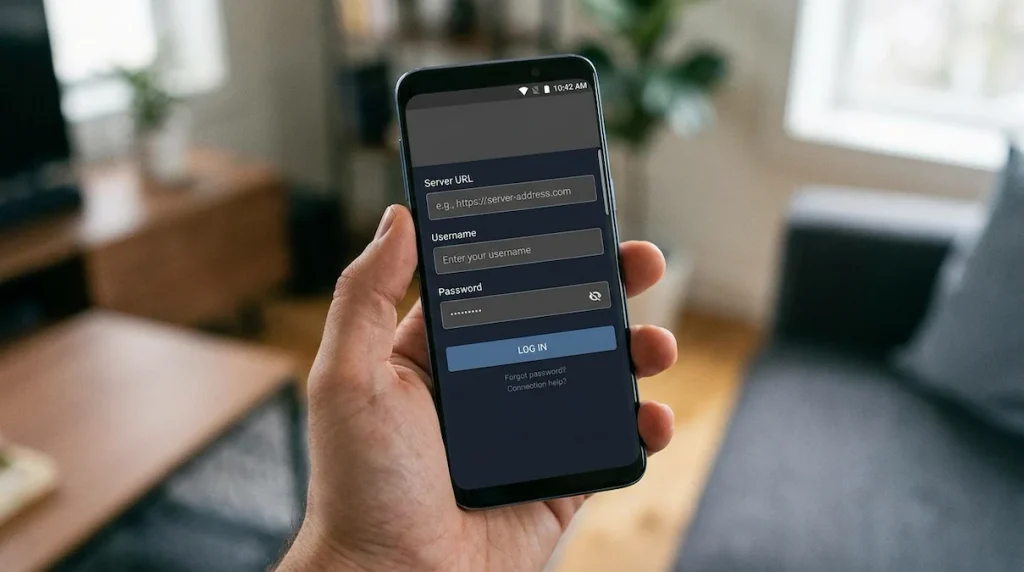
Once the app is installed, add your source using whichever method your provider gives you.
- Xtream Codes: choose the login option and enter your username, password and server URL.
- M3U URL: choose the playlist option and paste your M3U playlist link.
- EPG: add your provider’s XMLTV guide link for a full TV guide.
Save, wait a moment while the app loads, and your channels, films and series appear in their sections. If you have not chosen a service yet, you can test one with an IPTV free trial first.
IPTV Smarters Pro vs Smarters Player Lite
People often ask how IPTV Smarters Pro compares with the Lite version and with other players. Here is a quick look against TiviMate.
| Player | Best for | Playlists |
|---|---|---|
| IPTV Smarters Pro | Firestick, Android, Smart TVs | M3U, Xtream Codes |
| Smarters Player Lite | iPhone and iPad | M3U, JSON |
| TiviMate | Android TV power users | M3U, Xtream Codes |
Troubleshooting Common Issues
- Playlist will not load: re-check your M3U link or Xtream Codes details, and confirm your subscription is active.
- Buffering: test your internet speed, go wired where you can, and restart the app and device.
- TV guide is blank: add or update your EPG link, as the guide data comes from your provider.
- A stream will not play: try the external player option, or ask your provider about the format.
Why Choose IPTV Smarters Pro?
With so many players available, a few things keep IPTV Smarters Pro near the top of most shortlists:
- It is free, so there is no barrier to trying it out.
- It works on more devices than almost any rival, from a Firestick to a Smart TV.
- The layout is familiar and beginner-friendly, with very little to learn.
- It supports both M3U and Xtream Codes, so it fits nearly every service.
If you want one app that the whole household can use across different screens, it is hard to beat. That broad compatibility is also why many providers recommend it to new customers.
Best IPTV Smarters Pro Settings
IPTV Smarters works well out of the box, but a few settings make a real difference to stability and ease of use. You’ll find them under the Settings icon on the home screen (names can vary slightly between versions):
- Stream Format: if channels stutter or refuse to play, switch between Default, MPEGTS (.ts) and HLS (.m3u8) and test which one your provider handles best.
- Player Selection: keep the built-in player for live TV, or choose an external player such as VLC for films if a format won’t play.
- Automation: turn on automatic channel and EPG refresh on start-up so the TV guide stays up to date.
- EPG Timeshift: if the guide is an hour out (common around the clock change), adjust the timeshift by +1 or -1 hour.
- Parental Control: set a PIN and lock adult or unsuitable categories if children use the same device.
If you want even more control over the guide and recordings, our TiviMate Premium guide explains the main alternative on Android TV and Fire TV.
Tips for a Smooth Experience
- Use a wired connection or strong 5 GHz Wi-Fi for 4K and live sport.
- Add an EPG link so the TV guide shows what is on now and next.
- Keep the app updated for the latest fixes and smoother performance.
- Name each playlist clearly if you manage more than one service.
- Test a provider with a free trial before committing to a long plan.
These small habits make a bigger difference to picture quality than switching apps, so they are worth setting up from the start.
Is IPTV Smarters Pro Safe and Legal in the UK?
Yes, the app itself is safe and legal. IPTV Smarters Pro is a media player, just like VLC: it plays the playlist you give it and doesn’t include any channels of its own. What matters legally is where your playlist comes from. Only use services that are licensed to show the content they offer, and remember that UK TV licence rules still apply when you watch live broadcasts.
For safety, install IPTV Smarters only from the Google Play Store, the Amazon Appstore, the Apple App Store or the official website. Avoid “modded” or “premium unlocked” APKs shared on forums and social media. These unofficial copies can contain malware, stop working without warning and put your device and accounts at risk.
If you want more control than Smarters offers, see our complete OTT Navigator guide for a popular power-user player.
If you use IPTV Smarters Pro on public Wi-Fi or want more privacy at home, our best VPN for IPTV UK guide covers the fastest and most secure picks.
Related guide: on iPhone or iPad, many people prefer GSE. See our GSE Smart IPTV setup guide.
Want to try it yourself? StreamoPro offers a free 24-hour trial, so you can test the channels and picture quality on your own TV before you pay anything. Get your free 24h trial on WhatsApp.
Frequently Asked Questions
Is IPTV Smarters Pro free?
Yes, the app is free to download. It is a player only, though, so you still need your own IPTV subscription to watch anything.
Does it support Xtream Codes and M3U?
Yes. You can add your service with an Xtream Codes login or an M3U playlist link, and include an XMLTV EPG for the programme guide.
Which devices does it work on?
It runs on Firestick, Android phones and TVs, many Smart TVs and computers. On iPhone and iPad, the Smarters Player Lite app is used instead.
Does the app include channels?
No. It is a standalone player with no content of its own. You add your own playlist from a provider to watch live TV, films and series.
Why will my playlist not load?
Usually a small error in the link or login details, an expired playlist, or an unstable connection. Re-enter the details carefully and check your internet before trying again.
What is the difference between IPTV Smarters and IPTV Smarters Pro?
Most people use the names interchangeably. IPTV Smarters is the brand, and IPTV Smarters Pro is its main player app for Android and Fire TV devices. On iPhone and iPad, the equivalent app is called Smarters Player Lite.
Can I use IPTV Smarters Pro on more than one device?
Yes. You can install the app on as many devices as you like and log in with the same details. How many streams you can watch at the same time depends on your provider’s connection limit, not on the app.
Conclusion
IPTV Smarters Pro remains a favourite because it is free, easy and works almost everywhere. Add your M3U or Xtream Codes playlist, and it turns a Firestick, Android device or Smart TV into a complete streaming hub. Pair it with a reliable service and you will be watching within minutes.
Leave a Reply