Last updated: November 2026
In short: Firestick IPTV means watching IPTV on an Amazon Fire TV Stick (usually just called a Firestick) using a player app such as TiviMate or IPTV Smarters Pro. Install the app from the Amazon Appstore, add the playlist or login from a licensed provider, and use Ethernet or 5 GHz Wi-Fi for smooth playback.
IPTV on Fire TV Stick works by installing a compatible IPTV player app, then adding the playlist or login details supplied by a provider you are legally entitled to use. The Fire TV Stick (most people just call it a Firestick) is only the device and the player is only the interface, so what you can watch depends entirely on your provider’s licensing.
This guide explains how IPTV works, which kinds of player app are available, how to install one and what to check when streams stutter. It is written for UK households that want a practical walkthrough rather than a list of questionable channel packages.
The legal side matters too. The technology is lawful, but not every service that uses it is.
Key Takeaways
- IPTV is TV delivered over broadband, and services you may already use, such as BBC iPlayer and ITVX, work this way.
- A player app plays content but usually supplies none, so you need details from an authorised provider.
- Check the Amazon Appstore first, and only sideload an app from an official developer or provider website.
- A wired connection or a strong 5GHz Wi-Fi signal fixes most buffering problems.
- A TV Licence is needed for live TV and BBC iPlayer, whichever device you use.
Table of Contents
- What Is IPTV, and Is It Legal in the UK?
- What You Need Before You Start
- Which Firestick Is Best for IPTV?
- IPTV Apps for Fire TV Stick
- How to Install IPTV on Firestick in the UK
- Fire TV Stick IPTV Setup: Adding Your Details
- Fire TV Stick Streaming UK: Getting Stable Playback
- Firestick Settings That Make IPTV Run Better
- Troubleshooting Common Problems
- FAQ
- Conclusion
What Is IPTV, and Is It Legal in the UK?
IPTV stands for internet protocol television. Programmes arrive over your broadband connection instead of an aerial, satellite dish or cable. Plenty of mainstream UK services already work this way, including BBC iPlayer, ITVX, Channel 4 and My5.
Third-party IPTV players are different. They are usually empty shells that play whatever playlist you give them, so lawfulness depends on whether the provider holds the rights to the content it sells. Using IPTV on Fire TV Stick is not illegal in itself, but streaming from an unlicensed source may breach copyright law.
Very cheap packages promising every premium sports and film channel deserve caution. They may be unauthorised, can vanish without notice and leave you without consumer protection. Choose providers that can show they are licensed.
This article makes no claim about the licensing status of any specific provider.
You will also need a TV Licence to watch live television. TV Licensing explains the current rules.
What You Need Before You Start
- A Fire TV Stick connected to your TV and Wi-Fi, with an Amazon account signed in
- A stable broadband connection (see the streaming section below)
- Details from an authorised provider, typically a playlist URL, a username and password, or a portal address
- A phone with the Fire TV mobile app, or a keyboard, so you can avoid typing long URLs with the remote.
Which Firestick Is Best for IPTV?
Every current Firestick can run IPTV apps, but they don’t all cope equally well with large playlists, busy TV guides and 4K streams. More memory, more storage and faster Wi-Fi make a noticeable difference when you have thousands of channels loaded.
| Model | Picture | Good for |
|---|---|---|
| Fire TV Stick HD | Full HD | Smaller TVs and simple playlists on a budget |
| Fire TV Stick 4K | 4K, HDR | Most households with a 4K TV |
| Fire TV Stick 4K Max | 4K, HDR, Wi-Fi 6E, more storage | The best all-round Firestick for IPTV |
| Fire TV Cube | 4K, HDR, built-in Ethernet port | Big playlists and a wired, rock-solid connection |
For most UK viewers, the Fire TV Stick 4K Max is the sweet spot: it’s fast enough for TiviMate’s guide, handles 4K well and supports the latest Wi-Fi. If your router is in the same room, the Fire TV Cube’s Ethernet port is the most reliable option of all. Specifications change between generations, so check Amazon’s device information before you buy.
IPTV Apps for Fire TV Stick
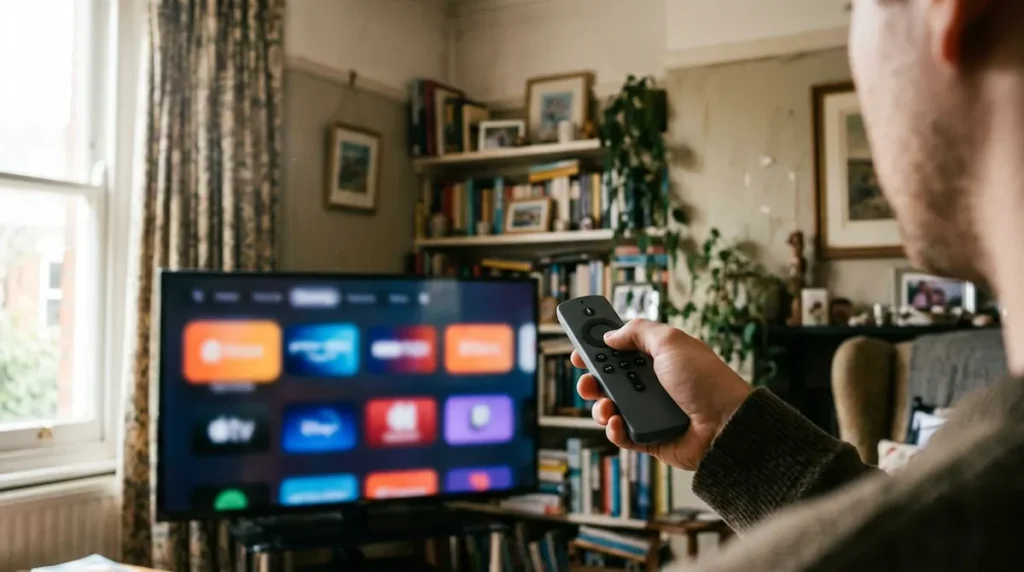
Most players do the same basic job. They read a playlist or login, then show channels in a list or programme guide. Some also offer favourites, recordings and catch-up, if your provider supports them.
Choosing an IPTV Player for Fire TV Stick
| Type of app | How it works | Best for | Check before using |
|---|---|---|---|
| Dedicated IPTV player (for example IPTV Smarters Pro or TiviMate) | You add a playlist or login from your provider | Viewers who want a channel list and programme guide | Amazon Appstore availability; whether premium features need a paid upgrade. |
| Media centre with a PVR add-on (for example Kodi) | A add-on reads your playlist inside the media centre | People who already use a media centre | More setup; only use add-ons from trusted sources |
| Provider’s own app | Sign in with the account details you were given | The simplest sign-in | That it comes from the Amazon Appstore or the provider’s official site |
| Broadcaster apps (BBC iPlayer, ITVX, Channel 4, My5) | Free to install; sign-in usually required | UK live channels and catch-up | TV Licence rules for live and iPlayer viewing |
Wherever possible, install from the Amazon Appstore, where apps go through Amazon’s review process. See our TiviMate Premium UK guide.
How to Install IPTV on Firestick in the UK
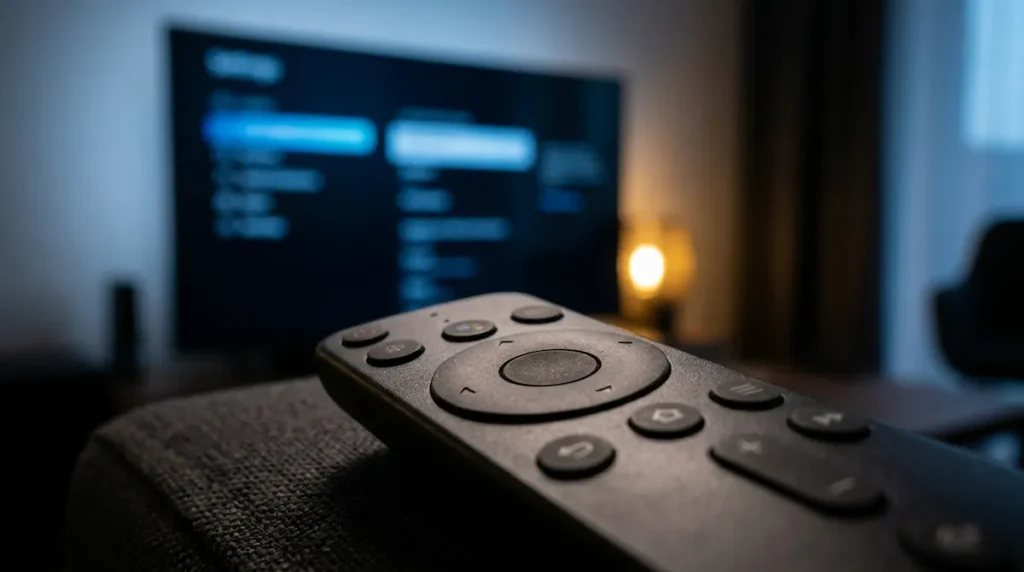
Menu names vary slightly between Fire OS versions.
Installing from the Amazon Appstore (recommended)
- From the Home screen, choose Find, then Search.
- Type the name of your chosen player.
- Select the correct app from the results and choose Get or Download.
- Open the app once installation finishes.
Installing an app that is not in the Appstore
Some providers publish an official Android app file (APK) on their own website. If yours does, you can sideload it, but treat this as a last resort.
- Install a file-downloader app from the Appstore.
- In Settings > My Fire TV > Developer options, allow installs from unknown apps for that downloader only.
- Enter the provider’s official download address, never a link from an unknown forum or social post.
- Install the file, then switch the unknown-sources permission off again.
Fire TV Stick IPTV Setup: Adding Your Details
Once the player is open, it will ask how you want to add your content. The options depend on the app, and your provider’s instructions take priority. Amazon’s help pages cover general Fire TV settings and account questions.
Using a playlist URL
Choose the option to add a playlist, then enter the link your provider gave you. A single mistyped character will stop it loading, so copy it carefully.
Using a username and password
Some players ask for a server address, username and password instead. Enter them exactly as supplied, and keep these details private, as anyone who has them can use your account.
After loading, give the app a few minutes to fetch the channel list and programme guide. Then mark your favourite channels so you are not scrolling through hundreds of entries.
Fire TV Stick Streaming UK: Getting Stable Playback
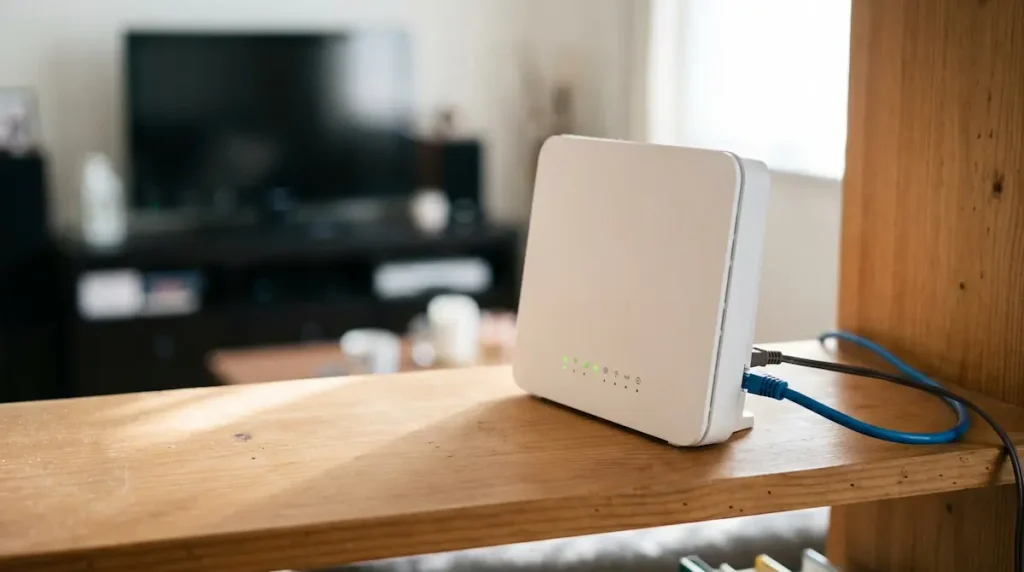
Good broadband matters more than the stick itself when you stream IPTV on Fire TV Stick. These steps usually help:
- Move the router closer, or use the 5GHz band, which tends to be faster at short range.
- Use a wired connection if you can. An Ethernet adapter for Fire TV devices is sold by Amazon and other retailers.
- Reduce competition by pausing downloads and other streams during live viewing.
- Restart the router and stick regularly, as it clears many temporary faults.
- Keep the app updated so you have the latest fixes.
HD and 4K need different amounts of bandwidth, and the right figure varies by provider and stream. Ask your provider for its recommended minimum speed.
Firestick Settings That Make IPTV Run Better
A Firestick has limited memory, so a few quick changes in the settings menu can make IPTV apps open faster and buffer less. Menu names vary slightly between Fire OS versions:
- Turn off autoplay on the home screen: go to Settings > Preferences > Featured Content and switch off video and audio autoplay. This frees memory for your IPTV app.
- Clear the app cache: Settings > Applications > Manage Installed Applications, choose your player and select Clear cache (not Clear data, which removes your playlist).
- Uninstall apps you don’t use: low storage slows the whole Firestick down.
- Match the frame rate: under Settings > Display & Sounds > Display, turn on Match Original Frame Rate for smoother sport and films.
- Restart once a week: Settings > My Fire TV > Restart clears memory and fixes many slow-down problems.
If you use IPTV Smarters, our IPTV Smarters Pro guide covers the in-app settings worth changing as well.
Troubleshooting Common Problems
Most Fire TV Stick IPTV problems come down to the connection, the app or the login details. Work through these quick checks before contacting your provider.
- Buffering or freezing: restart the Fire Stick and your router, move the router closer or use an Ethernet adapter, and drop the stream quality from 4K to HD.
- App will not open or crashes: go to Settings > Applications > Manage Installed Applications, clear the app’s cache, then reopen it. Reinstall it if the problem continues.
- Login or playlist error: re-enter your username, password and server URL carefully. They are case-sensitive, and a single extra space will stop them working.
- Channels load but show no guide: refresh or reload the EPG in the app settings, and check that the Fire Stick’s time zone is set to the UK.
- Storage full: older Fire Sticks have little space. Uninstall apps you no longer use so the IPTV app runs smoothly.
Still buffering? Our full guide on how to fix IPTV buffering covers every fix step by step.
Not using a Fire Stick? Here is how to set up IPTV on Samsung Smart TV instead.
Prefer to use your TV’s built-in apps instead of a stick? See our guide to IPTV on LG Smart TV.
Want extra privacy on your Fire TV Stick? See our guide to the best VPN for IPTV in the UK, with simple setup steps for Fire TV.
Want the bigger picture first? Read our complete guide to IPTV in the UK, covering costs, legality and devices.
Want to try it yourself? StreamoPro offers a free 24-hour trial, so you can test the channels and picture quality on your own TV before you pay anything. Get your free 24h trial on WhatsApp.
FAQ
Is IPTV on Fire TV Stick legal in the UK?
The technology is legal, and many licensed UK services use it. Legality depends on whether your provider has the rights to the content it supplies, so avoid sellers that cannot show they are licensed.
Do I need a TV Licence to use IPTV?
You need a TV Licence to watch or record live TV on any channel or service, and to watch BBC programmes on iPlayer. This applies whichever device you use, so check the TV Licensing website for your situation.
Which Fire TV Stick is best for IPTV?
Any current model can run IPTV player apps, but newer models with more memory and faster Wi-Fi generally cope better with large playlists and 4K. Check Amazon’s current specifications before buying.
Can I install IPTV apps that are not in the Amazon Appstore?
Sometimes, by sideloading an APK file after enabling installs from unknown sources in the Fire TV settings. Only do this with files from an official developer or provider website, and switch the setting off again afterwards.
Why does IPTV keep buffering on my Fire TV Stick?
The usual causes are weak Wi-Fi, a busy home network or an overloaded stream from the provider. Try a wired connection, move the router closer, restart your devices and clear the app’s cache.
Is a playlist the same as a subscription?
No. A playlist is a file or link that lists streams, while a subscription is your agreement with a provider to access content. Only use playlists supplied by a provider you are entitled to use.
What is the best IPTV app for Firestick?
TiviMate is the most popular Firestick IPTV app thanks to its fast TV guide, while IPTV Smarters Pro is the easiest for beginners. Both are available from the Amazon Appstore. Our guide to the best IPTV players in the UK compares more options.
Conclusion
IPTV on Fire TV Stick is simple once you separate three things: the device, the player app and the content provider. Install a player from the Amazon Appstore where you can, add details only from an authorised provider, and fix most playback issues with a better connection.
If you would like to go further, see our TiviMate Premium UK guide. Before you subscribe to anything, check that the provider is licensed and that your TV Licence is in order.
Want a simple, reliable setup for your Fire TV Stick? Explore our IPTV plans and start with a free test.
Leave a Reply