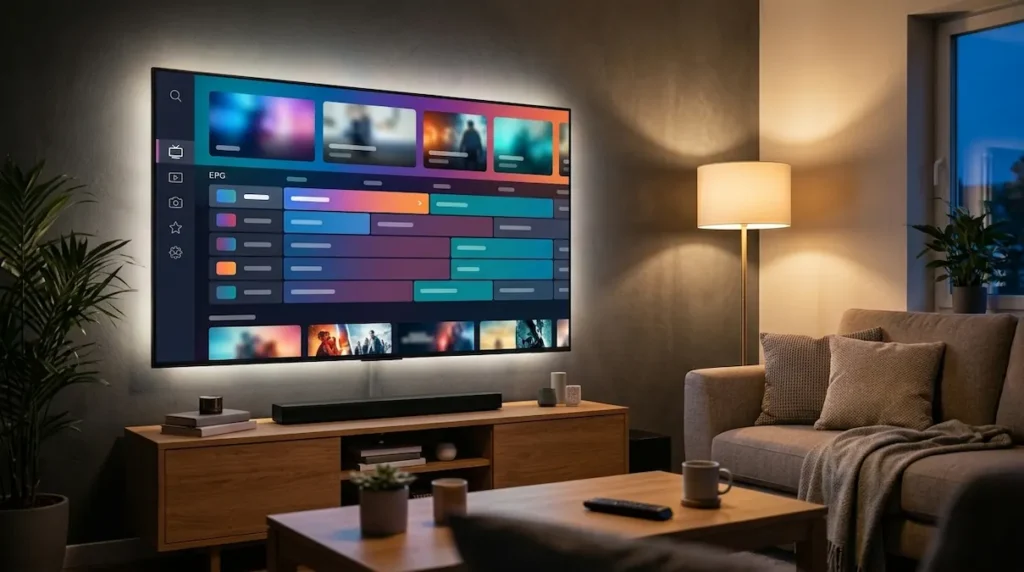
In short: OTT Navigator is one of the most powerful IPTV players for Android, Android TV and Fire TV. It supports M3U playlists, Xtream Codes logins and EPG, and adds pro features like catch-up, multi-view and a fully customisable layout. There is a free version to try, while the Premium unlock removes the limits. This guide covers what the app does, which devices it runs on, and how to set it up in minutes.
If you want a sleek, flexible app to run your subscription, OTT Navigator is a brilliant choice. It gives you a tidy TV guide, smooth playback and more settings than almost any rival. In this UK guide for 2026 we break down the features, the free versus Premium question, supported devices and a simple step-by-step setup so you are watching in no time. By the end you will know whether it is the right player for your TV.
Key takeaways
- OTT Navigator works with M3U, Xtream Codes and Stalker/portal playlists.
- It runs on Android phones, tablets, Android TV boxes and the Fire TV Stick.
- A free version lets you test it; Premium unlocks every feature.
- Standout tools: EPG, catch-up/archive, multi-view and deep customisation.
- Setup takes minutes with your provider’s M3U link or Xtream login.
What is OTT Navigator?
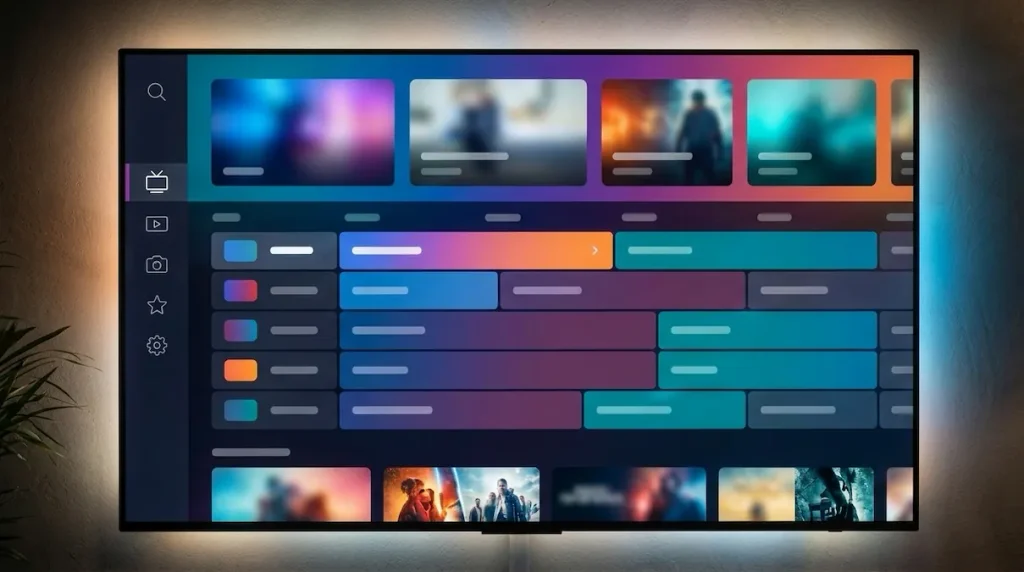
OTT Navigator is a premium-grade IPTV player app for Android devices. Rather than supplying any channels itself, it is the software you load your own subscription into — you add a playlist from your provider and the app turns it into a polished, easy-to-browse interface with a proper TV guide.
What sets it apart is how much control it gives you. Where some apps keep things basic, this one lets you reshape almost everything: the layout, the colours, how the guide looks, which video player handles playback and how much buffering to use. It is a favourite among people who want their streaming to look and feel exactly right, and it has built a loyal following for good reason.
Think of it as the control centre for your IPTV. You bring the subscription; OTT Navigator turns it into a clean, fast, personalised TV experience that rivals — and often beats — the interface of a traditional set-top box.
It is also light on resources, so it runs smoothly even on budget Android boxes and older Fire TV Sticks. Playback starts quickly, channel switching feels snappy, and the app rarely crashes. For a free-to-try player, that kind of stability is a big part of why so many UK viewers stick with it once they have set it up.
Key features of OTT Navigator

The app is packed with tools you would normally expect from far pricier software. The highlights include:
- Full EPG (TV guide): a clean, scrollable programme guide so you can see what is on now and next.
- Catch-up and archive: if your provider supports it, you can rewind and watch programmes that have already aired.
- Multi-view: watch several channels on screen at once — handy on a big TV during a busy sports night.
- External player support: play through the built-in ExoPlayer or hand off to VLC or another player.
- Deep customisation: themes, layouts, favourites and parental controls you can tailor to your household.
- Adjustable buffering: fine-tune the buffer to keep playback smooth on slower connections.
- Series and VOD support: films and box sets from your provider appear in their own tidy sections.
That mix of a strong TV guide and genuine flexibility is why OTT Navigator keeps appearing on “best IPTV player” lists. If you are comparing options, our round-up of the best IPTV player for UK users puts it next to the other top apps.
OTT Navigator free vs Premium
The app comes in a free version and a paid Premium tier. The free version is a genuine way to test it and get a feel for the interface, but it limits some of the best features. Premium removes those limits and unlocks the full experience — the extra customisation, multi-view, more EPG options and the rest.
Premium is usually available as a one-off purchase or a subscription, and it is inexpensive compared with what you get. Because pricing changes over time, always check the current cost on the official OTT Navigator Google Play listing before you buy. For most regular viewers, the Premium unlock is well worth it, and you can always start on the free tier first.
Which devices support OTT Navigator?
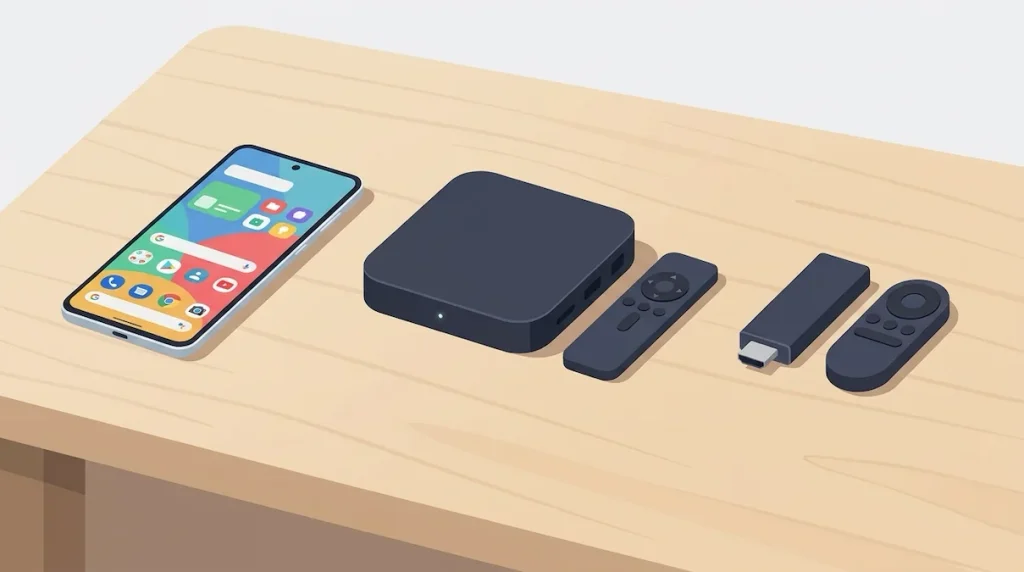
Because it is an Android-first app, OTT Navigator runs on the widest range of streaming hardware:
- Android phones and tablets — install straight from the Google Play Store.
- Android TV boxes — a perfect match, with a layout built for the big screen and a remote.
- Amazon Fire TV Stick — works well once installed, making it a great budget living-room setup.
- Google TV devices — the Chromecast with Google TV and similar dongles are fully supported.
The one gap is Apple: the app is not available on iPhone, iPad or Apple TV, because it is built for Android. If you are on Apple hardware, you will need a different player. Setting up on a Fire TV Stick? Our Fire TV Stick setup guide walks through getting the device ready first.
How to set up OTT Navigator
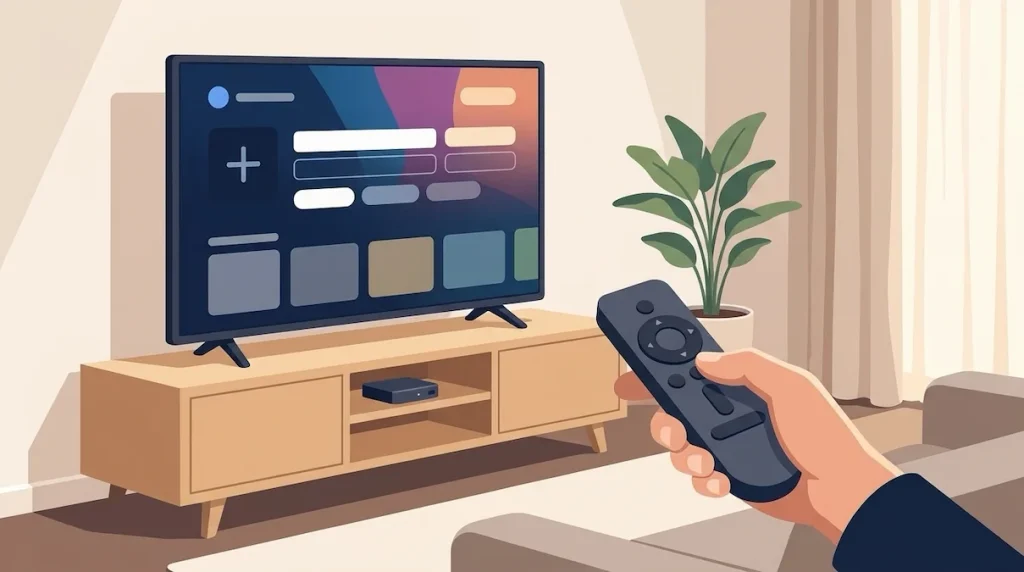
Getting started is quick. You will need the M3U link or the Xtream Codes details from your subscription. Then follow these steps:
- Install the app from the Google Play Store (or the Amazon Appstore on Fire TV).
- Open it and choose to add a new playlist.
- Pick your source type — Xtream Codes (enter the server URL, username and password) or M3U (paste the playlist link).
- Let the app load your channels and EPG. This can take a minute the first time.
- Open the TV guide, pick a channel, and start watching.
That is it. From there you can set favourites, tweak the layout and enable catch-up. If the picture stutters at first, lowering the stream quality or adjusting the buffer usually fixes it — our guide on how to fix IPTV buffering has the full checklist. Spend ten minutes in the settings and you can shape the whole interface around how your household watches.
OTT Navigator vs other IPTV players
How does it compare with the other big names? Here is a quick look at where it stands.
| App | Best for | Platforms | EPG | Customisation |
|---|---|---|---|---|
| OTT Navigator | Power users | Android / Fire TV | Yes | Very high |
| TiviMate | Clean Android TV look | Android / Fire TV | Yes | High |
| IPTV Smarters Pro | Beginners | Most platforms | Yes | Medium |
| GSE Smart IPTV | Apple users | iOS / Android | Yes | Medium |
If you want the cleanest big-screen look, TiviMate is a close rival. But for sheer flexibility and the number of features on offer, OTT Navigator is hard to beat — especially if you enjoy tweaking things until they are just so.
Tips to get the best results
- Set up favourites so your most-watched channels are one click away.
- Enable the EPG and let it fully load for an accurate now-and-next guide.
- Try external players like VLC if a channel will not play on the default one.
- Increase the buffer slightly on slower broadband to stop stutters.
- Use a wired or 5GHz connection on your TV box for the steadiest 4K.
- Back up your settings once everything is set, so a reinstall takes seconds.
Related guide: for Apple devices, try GSE instead. Our complete GSE Smart IPTV guide covers setup step by step.
Want to try it yourself? StreamoPro offers a free 24-hour trial, so you can test the channels and picture quality on your own TV before you pay anything. Get your free 24h trial on WhatsApp.
Frequently asked questions
Is OTT Navigator free?
There is a free version you can use to test it, but some of the best features are locked behind the Premium upgrade. Premium is inexpensive and unlocks everything — check the Google Play listing for the current price.
Does it work on Fire TV Stick?
Yes. The app runs well on the Amazon Fire TV Stick, making it a cheap and tidy living-room setup. Once installed, you add your playlist exactly as you would on any Android device.
Can I use it on an iPhone or Apple TV?
No. It is an Android app, so it is not available on iOS or Apple TV. Apple users should pick a player such as GSE Smart IPTV instead.
What playlists does it support?
It supports M3U and M3U8 playlists, Xtream Codes logins and Stalker/portal sources, so it works with virtually any modern subscription.
Final verdict
OTT Navigator is one of the most capable IPTV players you can install, pairing a polished TV guide with a level of customisation few rivals match. The free version lets you try before you buy, and Premium is cheap for what you get. If you run an Android device or a Fire TV Stick and want your streaming to look and work exactly how you like, this app deserves the top spot on your list.
Leave a Reply