GSE Smart IPTV is one of the most capable IPTV player apps for Apple and Android devices. It turns your phone, tablet or Smart TV into a full streaming hub by loading a playlist you supply yourself, with support for M3U links, Xtream Codes and a built-in TV guide.
This guide explains what the app does, how to set it up on UK devices, how to add your playlist, and how to fix the issues people run into most often.
In short: GSE Smart IPTV is a standalone media player for iPhone, iPad and Android. You install the app, add your own M3U playlist or Xtream Codes login, and it organises your channels, films and series with an electronic programme guide. It does not include any channels of its own, so you need a subscription from a provider.
Key Takeaways
- The app is a player only. You supply the playlist or source.
- It supports M3U playlists and the Xtream Codes API, plus an XMLTV TV guide.
- The Pro version costs £2.99 on the UK App Store, and a free version is also available.
- It runs on iPhone, iPad and Android, with AirPlay and Chromecast for the big screen.
- Most problems come from a mistyped login, an expired playlist or a weak connection.
Table of Contents
- What Is GSE Smart IPTV?
- GSE Smart IPTV Features
- GSE Smart IPTV Setup: Getting Started
- How to Add a Playlist
- Supported Devices and Compatibility
- How to Watch GSE Smart IPTV on Your TV
- GSE Smart IPTV vs Other Players
- Best GSE Smart IPTV Settings
- Troubleshooting Common Issues
- Is GSE Smart IPTV Safe and Legal in the UK?
- Frequently Asked Questions
What Is GSE Smart IPTV?
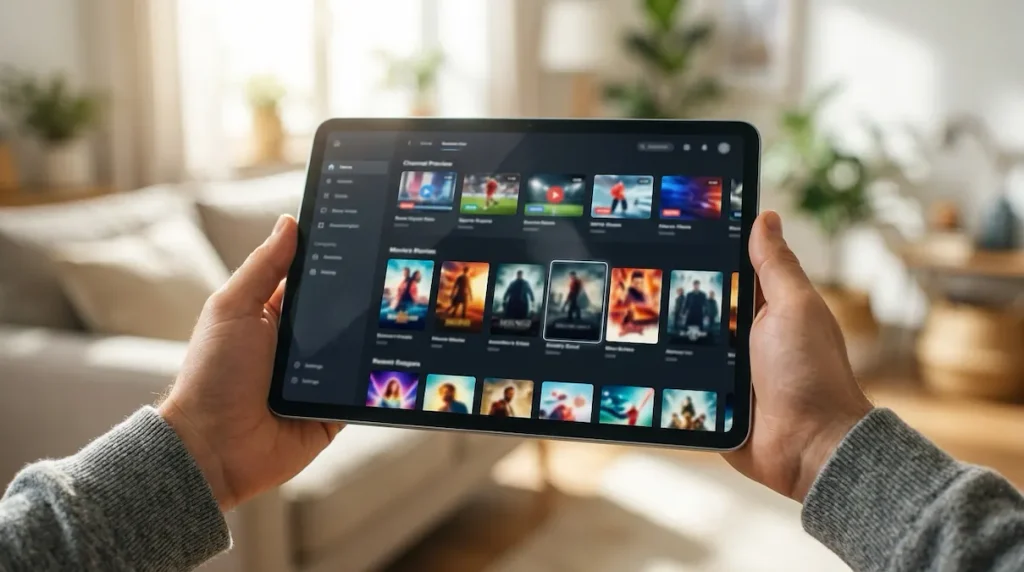
GSE Smart IPTV is a media player developed by GSE Technology that streams live TV, films and series from a playlist you provide. According to the official App Store listing, it is a player that does not supply any media content of its own. Everything you watch comes from an M3U link or Xtream Codes login added by you.
Because it works with standard playlist formats, it pairs with a wide range of services. It is especially popular on iPhone and iPad, where it is one of the longest-standing IPTV players available.
GSE Smart IPTV Features
GSE Smart IPTV packs in more tools than most players. The main features include:
- M3U and Xtream Codes support: load your playlist with a single M3U link or your Xtream Codes API login.
- Built-in player: handles most common formats, including RTMP streams.
- EPG timeline: an XMLTV electronic programme guide that shows what is on now and next.
- AirPlay and Chromecast: send your stream to a Smart TV or bigger screen.
- Live TV recording: record a live stream to watch later.
- Parental control: lock sections you do not want others to open.
- Favourites and playlist manager: organise channels, with export to M3U.
- Multiple themes and 31 languages: change the look and language inside the app.
GSE Smart IPTV Setup: Getting Started
Before you begin, make sure you have:
- An active IPTV subscription. If you have not chosen one, start with an IPTV free trial.
- Your login details: an M3U link, or an Xtream Codes username, password and server URL.
- A stable broadband connection. Around 25 Mbps is comfortable for HD, with more for 4K.
- A compatible iPhone, iPad or Android device.
Installing on iPhone or iPad
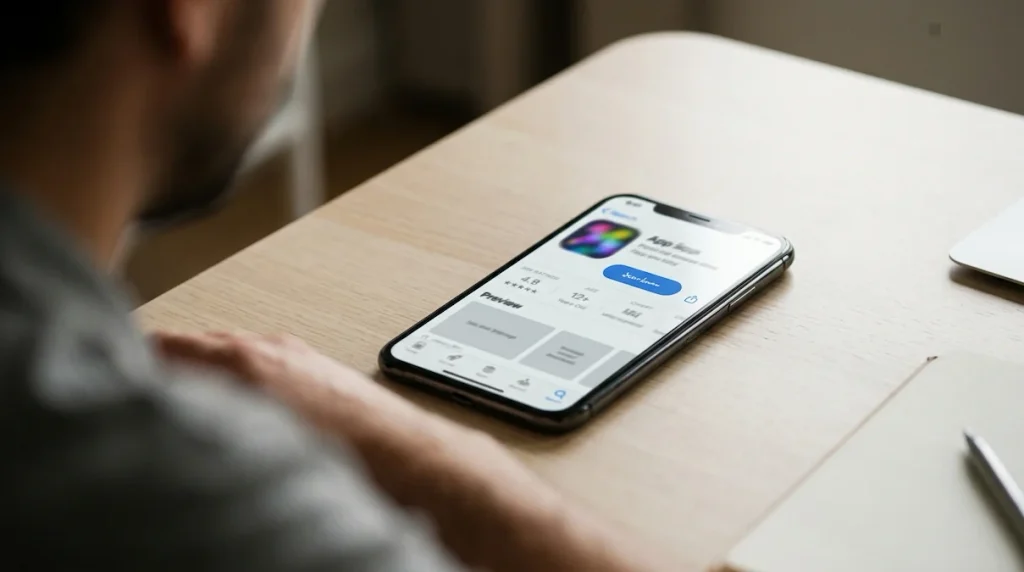
- Open the App Store and search for “GSE Smart IPTV”.
- Choose the free app, or the Pro version at £2.99, and tap to install.
- Open the app and accept the terms when prompted.
Installing on Android
- Open the Google Play Store and search for “GSE Smart IPTV”.
- Check the developer is GSE Technology, then tap Install.
- Open the app once it has downloaded.
How to Add a Playlist
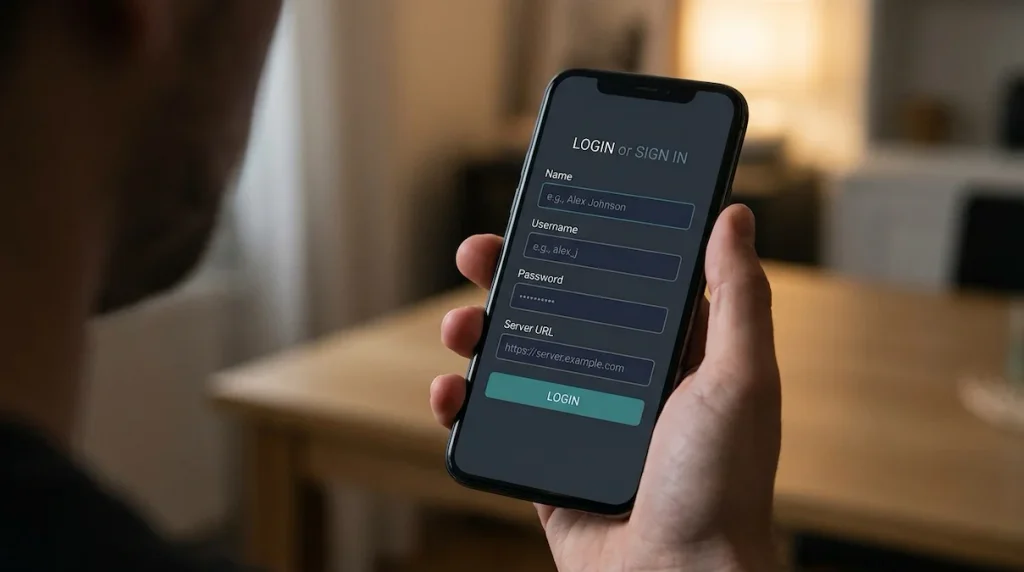
The app calls your source a “remote playlist”. You can add one using Xtream Codes or an M3U link.
Adding an Xtream Codes login
- Open the app and go to the playlist or Xtream Codes section.
- Enter a name, your username, your password and the server URL from your provider.
- Save, then wait while the app loads your channels, films and series.
Adding an M3U playlist
- Choose to add a remote playlist.
- Give it a name and paste your M3U playlist link.
- Save and let the app process the list. Add an XMLTV EPG URL if your provider offers one.
Supported Devices and Compatibility
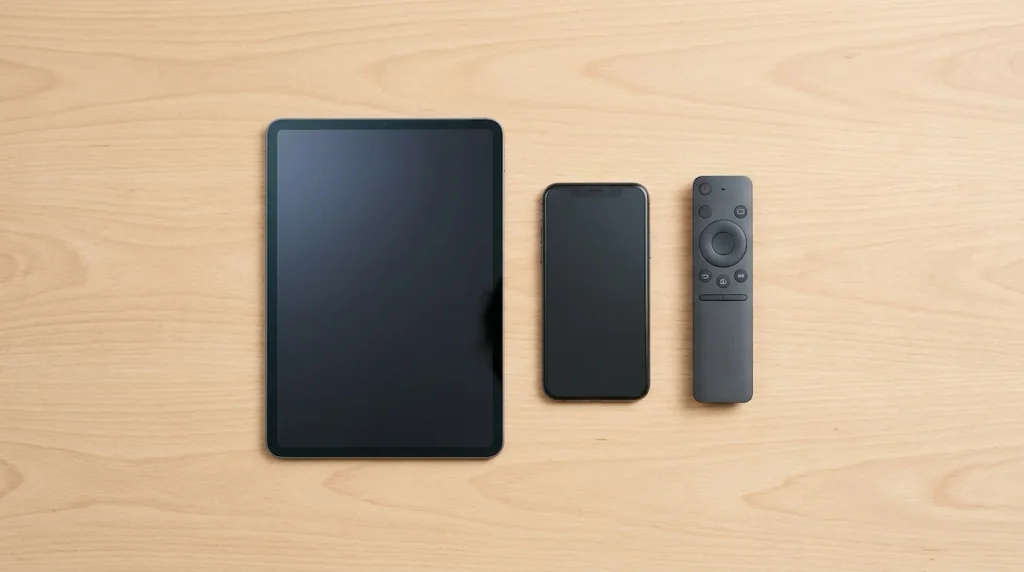
Based on the official App Store listing, the Pro app runs on:
| Device | Requirement |
|---|---|
| iPhone | iOS 9.0 or later |
| iPad | iPadOS 9.0 or later |
| iPod touch | iOS 9.0 or later |
| Apple Vision | visionOS 1.0 or later |
| Android | Available on the Google Play Store |
The Pro app is around 75 MB and available in English plus 30 other languages. For the big screen, you can use AirPlay or Chromecast rather than a dedicated TV app.
How to Watch GSE Smart IPTV on Your TV
GSE Smart IPTV (often shortened to GSE IPTV) is built mainly for phones and tablets, but getting the picture onto a big screen is easy. The two main options are AirPlay and Chromecast, and both work best when your phone and TV are on the same Wi-Fi network.
- AirPlay (iPhone and iPad): start a channel in GSE, tap the AirPlay icon in the player and choose your Apple TV or AirPlay-compatible smart TV.
- Chromecast (Android and iPhone): tap the cast icon in the player and pick your Chromecast or Google TV device.
- Screen mirroring: if a stream won’t cast directly, mirroring your whole screen usually works, though the picture quality can be slightly lower.
If you watch mostly on the TV, a dedicated streaming device is often smoother than casting. On a Fire TV Stick, for example, most people use TiviMate or IPTV Smarters Pro, as explained in our Fire TV Stick IPTV setup guide.
GSE Smart IPTV vs Other Players
It is not the only option. The table below compares it with two popular players, Smarters Player Lite and TiviMate.
| Player | Best for | Playlist support |
|---|---|---|
| GSE Smart IPTV | iPhone and iPad power users | M3U and Xtream Codes |
| Smarters Player Lite | Quick, simple setup | M3U and JSON |
| TiviMate | Android TV and Fire TV | M3U and Xtream Codes |
Best GSE Smart IPTV Settings
A few settings make GSE Smart IPTV much nicer to use every day. Menu names can change between versions, but you’ll usually find these in the app’s settings or playlist options:
- Add an EPG source: paste the XMLTV guide link from your provider so the TV guide shows what’s on now and next, and let it refresh automatically.
- Fix the guide time: if programmes are an hour out, adjust the EPG time offset, which is common around the clocks changing.
- Try the other decoder: if a channel stutters or shows a black screen, switch between the hardware and software player options.
- Use favourites: add the channels you actually watch to a favourites list so you don’t scroll through thousands every time.
- Turn on parental lock: set a PIN for adult or unsuitable categories if children use the same device.
Troubleshooting Common Issues
- Playlist will not load: re-check the M3U link or Xtream Codes details, and confirm your subscription is active.
- Buffering or freezing: test your internet speed, move closer to your router, or restart the app.
- The TV guide is blank: add or update your EPG URL, as the guide data comes from your provider.
- A stream will not play: try the external player option, or ask your provider if the stream format is supported.
Is GSE Smart IPTV Safe and Legal in the UK?
Yes, the app itself is safe and legal. GSE Smart IPTV is a media player: it plays the playlist you add and doesn’t supply any channels. What matters is where your playlist comes from, so only use services licensed to show their content, and remember that UK TV licence rules still apply to live TV.
For safety, download GSE only from the Apple App Store or Google Play. Avoid “cracked” or “premium unlocked” versions shared online. They can carry malware and often stop working without warning.
Watching on an Apple TV? Our IPTV on Apple TV guide covers the best players for tvOS and how to set them up.
Want to try it yourself? StreamoPro offers a free 24-hour trial, so you can test the channels and picture quality on your own TV before you pay anything. Get your free 24h trial on WhatsApp.
Frequently Asked Questions
Is GSE Smart IPTV free?
There is a free version of the app, and a Pro version costs £2.99 on the UK App Store. Either way, the app is a player only, so you still need your own IPTV subscription.
Does the app support Xtream Codes?
Yes. The app supports the Xtream Codes API as well as M3U playlists, so you can add your service using either method.
Which devices does it work on?
It works on iPhone, iPad and iPod touch running iOS 9.0 or later, on Apple Vision, and on Android via the Google Play Store. For a television, you can use AirPlay or Chromecast.
Does the app include channels?
No. It is a standalone player and does not provide any channels or content. You add your own playlist from an IPTV provider.
Why will my playlist not load?
Usually a small error in the link or login details, an expired playlist, or an unstable connection. Re-enter the details carefully and check your internet before trying again.
Is GSE IPTV the same as GSE Smart IPTV?
Yes. “GSE IPTV” is simply the short name most people use for GSE Smart IPTV, the player app made by Gearsoft.
Can I use GSE Smart IPTV on a Fire TV Stick?
GSE is designed mainly for phones and tablets, so on a Fire TV Stick most people choose a TV-first player such as TiviMate or IPTV Smarters Pro instead. You can still cast from GSE on your phone to a TV.
Final Thoughts
GSE Smart IPTV is a powerful, flexible choice, especially on iPhone and iPad. With M3U and Xtream Codes support, a proper TV guide, recording and casting, it suits viewers who want more control than a basic player offers. Add your playlist from a reliable service, and it becomes a dependable part of your setup.
Leave a Reply