Setting up IPTV on LG Smart TV is simpler than it first appears, even though LG’s webOS system does not let you sideload apps like a Firestick does. With the right app and a quick device-key activation, you can be streaming your own playlist in minutes, straight from the television.
This guide covers which apps work on LG sets, how the activation process runs, how to add an M3U or Xtream Codes playlist, and how to fix the issues people run into most often.
In short: To watch IPTV on an LG Smart TV, install a player such as Smart IPTV, IBO Player or Hot IPTV Player from the LG Content Store, note the device key it shows, then add your M3U or Xtream Codes playlist on the app’s activation website. You need your own subscription, as the apps include no channels.
Key Takeaways
- LG TVs use the webOS system, so you install apps from the LG Content Store.
- Popular choices are Smart IPTV, IBO Player and Hot IPTV Player.
- Most apps activate with a device key and your TV’s MAC address on a website.
- You add your own M3U or Xtream Codes playlist; the apps include no channels.
- A stable connection and an EPG link give the smoothest experience.
Table of Contents
- How to Get IPTV on LG Smart TV
- Best Apps for IPTV on LG Smart TV
- How to Set Up IPTV on LG Smart TV
- Adding Your Playlist and EPG
- Troubleshooting IPTV on LG Smart TV
- Why Watch IPTV on LG Smart TV?
- Frequently Asked Questions
How to Get IPTV on LG Smart TV
Getting IPTV on LG Smart TV comes down to three steps: install a player app from the store, activate it, and add your playlist. LG’s webOS system keeps things locked down, so you link your subscription through an app’s website rather than typing long details with the remote. It sounds unusual, but it only takes a few minutes the first time.
Best Apps for IPTV on LG Smart TV
Three apps cover almost every need on LG’s webOS TVs. Each works in a similar way, using a device key and a website to manage your playlist.
| App | Playlists | Activation |
|---|---|---|
| Smart IPTV | M3U, Xtream Codes | Device key on a website |
| IBO Player | M3U, Xtream Codes | Device key on a website |
| Hot IPTV Player | M3U, Xtream Codes | Device key on a website |
For full walkthroughs, see our guides to IBO Player and Hot IPTV Player, which both work on LG sets. The process is the same on a Samsung television too.
How to Set Up IPTV on LG Smart TV
The process is the same whichever app you choose. Have your playlist details ready, then follow these steps.
Step 1: Install the App
- Open the LG Content Store from your TV’s home screen.
- Search for your chosen app, such as Smart IPTV or IBO Player.
- Install it and open it once it has downloaded.
Step 2: Note Your Device Key
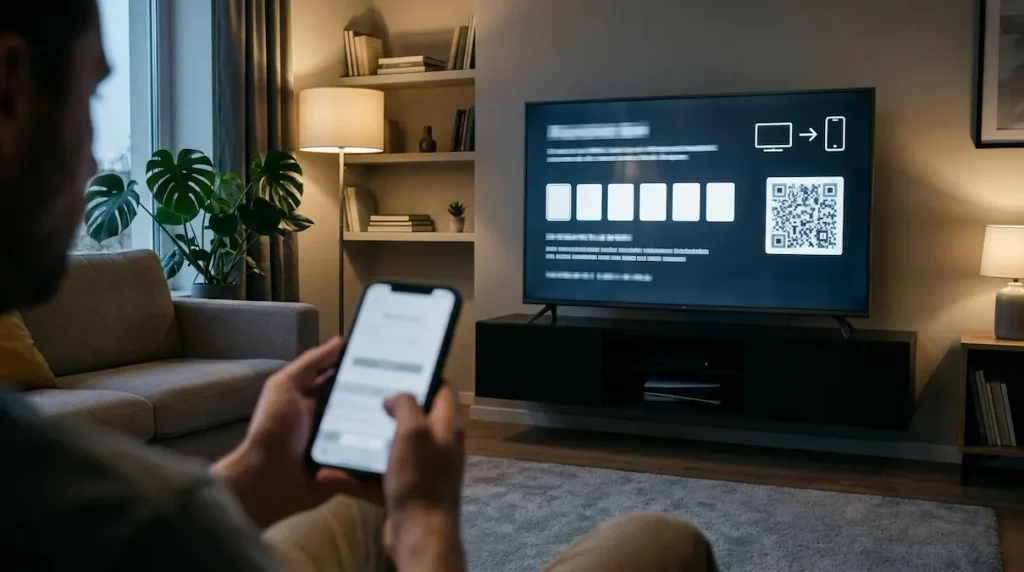
When the app opens for the first time, it shows a device key and your TV’s MAC address on screen. Keep that screen visible, as you will need both details for the next step. It is worth writing them down to avoid any typing errors.
Step 3: Activate on the Website
- On a phone or computer, open the app’s official activation website.
- Enter the MAC address and device key exactly as shown on the TV.
- Add your playlist (see the next section) and save, then reload the app on the TV.
Most apps offer a short free trial, followed by a small one-time activation fee per device. Always check the current price on the official site before you pay.
Adding Your Playlist and EPG
On the activation website, add your source using whichever method your provider supplies.
- M3U URL: paste your M3U playlist link and give it a name.
- Xtream Codes: enter your username, password and server URL.
- EPG: add your provider’s XMLTV guide link for a full TV guide.
Because your playlist lives in an online account, you can update it any time without touching the TV. If you have not chosen a service yet, an IPTV free trial lets you test the picture quality first.
Troubleshooting IPTV on LG Smart TV
- Playlist will not load: re-check the M3U link or Xtream Codes details on the website, and confirm your subscription is active.
- Nothing changes on the TV: reload the app after saving, as it refreshes from your online account.
- Buffering: test your internet speed and move the TV closer to the router, or use a wired connection.
- App not in the store: update your TV software, as very old LG models may not list every app.
Why Watch IPTV on LG Smart TV?
There are good reasons so many UK households choose to watch IPTV on LG Smart TV rather than add another box. The app runs natively on the television, so there is nothing extra to plug in, charge or switch inputs for. You get live TV, films and series in one place, with a proper guide, and you can manage your playlist from your phone.
It is also cost-effective. Because the television already connects to your broadband, there is no extra hardware to buy, and your provider handles the channels. That makes IPTV on LG Smart TV one of the tidiest ways to replace a traditional TV package, all controlled by a single remote.
LG TV vs a Streaming Stick
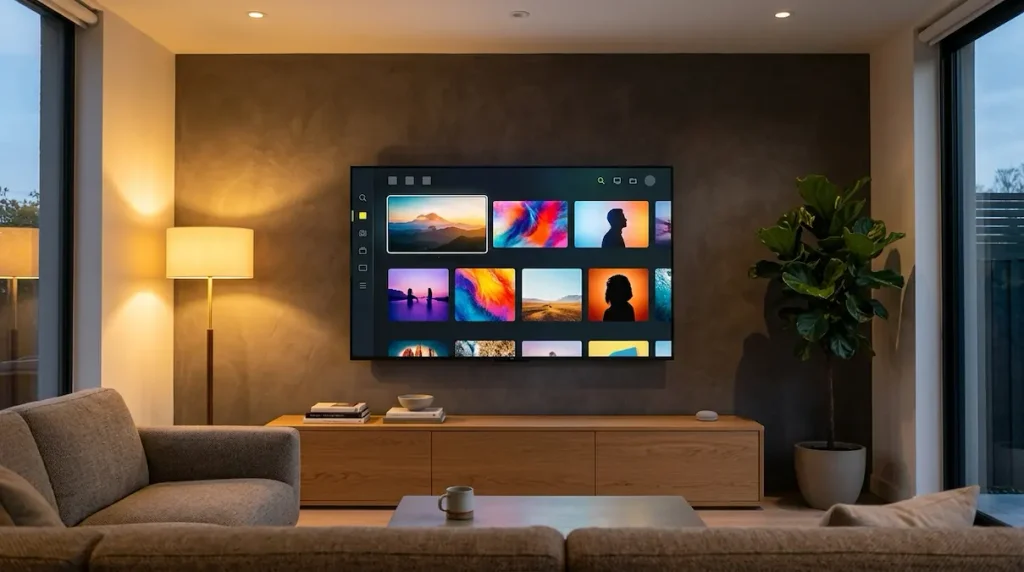
An LG Smart TV is convenient because the player runs natively, with nothing extra to connect. The trade-off is flexibility: webOS offers fewer apps than a Firestick, and very old models may miss a few. If you want the widest choice of players, a streaming stick is worth considering, while an LG set keeps everything on one remote. Our Fire TV Stick setup guide covers that alternative, and you can always add a stick later if you need more options.
What You Need to Get Started
- An LG Smart TV running webOS, connected to the internet.
- An active IPTV subscription with an M3U link or Xtream Codes details.
- A phone or computer to open the activation website.
- A stable connection; around 25 Mbps is comfortable for 4K.
If you would rather compare players first, our best IPTV player guide ranks the top options by device.
If you also have a Roku streaming stick, see our guide to IPTV on Roku for the best app options.
Want to try it yourself? StreamoPro offers a free 24-hour trial, so you can test the channels and picture quality on your own TV before you pay anything. Get your free 24h trial on WhatsApp.
Frequently Asked Questions
Is IPTV on LG Smart TV free?
The apps usually offer a free trial, then a small one-time activation fee per device. You also need your own IPTV subscription, as the apps include no channels.
Which app is best for an LG TV?
Smart IPTV, IBO Player and Hot IPTV Player are all strong choices. They work in a similar way, so pick whichever is available in your LG Content Store.
Why do I activate on a website?
LG’s webOS system is locked down, so the apps link your playlist to a device key online. This avoids typing long links with the remote and lets you update details any time.
Can I use M3U and Xtream Codes?
Yes. You can add your service as an M3U link or with Xtream Codes details, and include an XMLTV EPG for the programme guide.
What if the app is not on my TV?
Update your TV’s software first. If it still does not appear, a streaming stick such as a Firestick is a reliable alternative with more app choice.
Conclusion
Setting up IPTV on LG Smart TV is quick once you know the device-key routine. Install a player such as Smart IPTV, IBO Player or Hot IPTV Player, activate it on the website, and add your M3U or Xtream Codes playlist. Pair it with a reliable service and your LG television becomes a complete streaming hub.
Leave a Reply