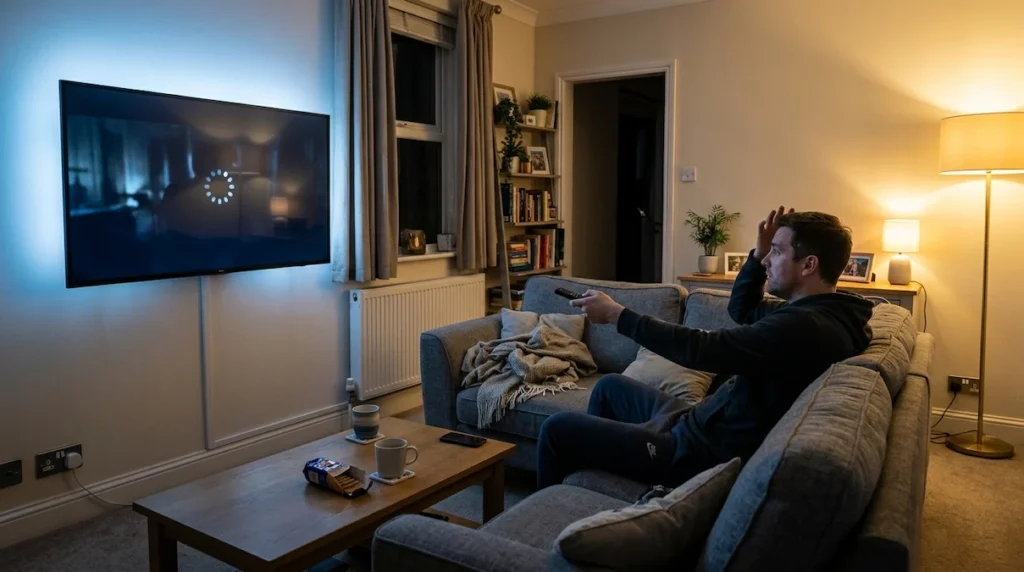
IPTV buffering is the most common frustration for UK streamers, and the good news is that most cases are easy to fix. When a stream keeps pausing to load, the cause is almost always your connection, your Wi-Fi or a setting on your device, rather than the app itself.
This guide walks through the real causes and the step-by-step fixes, from a quick checklist to internet speed, Wi-Fi, router tips and when to contact your provider.
In short: Most IPTV buffering is caused by a slow or unstable connection. Test your speed, switch from Wi-Fi to Ethernet, restart your router and device, close background apps, and try a different server line in your app. If it continues on a fast connection, the issue is usually your provider.
Key Takeaways
- Most buffering is a connection problem, not an app problem.
- A wired Ethernet connection is the single best fix for a stable stream.
- Around 25 Mbps is comfortable for 4K; HD needs far less.
- Restarting your router, device and app clears many temporary faults.
- If a fast, wired connection still struggles, the problem is your provider.
Table of Contents
- What Causes IPTV Buffering?
- Quick Fixes for IPTV Buffering
- Check Your Internet Speed
- Wi-Fi vs Ethernet
- Router and Network Fixes
- Device and App Fixes
- Does a VPN Stop IPTV Buffering?
- When to Contact Your Provider
- Frequently Asked Questions
What Causes IPTV Buffering?

Buffering happens when your player cannot download the stream fast enough to keep playing, so it pauses to fill its buffer. Understanding the cause makes the fix obvious. The usual culprits are:
- A slow or unstable internet connection, which is by far the most common cause.
- A weak Wi-Fi signal, especially in a room far from the router.
- Network congestion when several devices stream or download at once.
- An overloaded or distant provider server, which you cannot control.
- An older device that struggles with high-bitrate 4K streams.
Quick Fixes for IPTV Buffering
Before anything technical, run through this quick checklist. It clears most IPTV buffering in a couple of minutes:
- Restart your router, then your streaming device, then the app.
- Move closer to the router, or move the router away from walls and other electronics.
- Pause any large downloads or other streams on the same network.
- Lower the stream quality in the app if your connection is modest.
- Switch to a different server line if your provider offers one.
Check Your Internet Speed

Speed is the first thing to confirm. Run a speed test on the same device you stream with, and compare it to the rough guidance below. You can also check what your line should deliver with Ofcom’s broadband guidance.
| Quality | Recommended speed (per stream) |
|---|---|
| SD | Around 5 Mbps |
| HD | 10 to 15 Mbps |
| 4K / UHD | Around 25 Mbps |
Remember that these figures are per stream, so a busy household needs more headroom. If your speed is well below the guide, that alone explains the buffering.
Wi-Fi vs Ethernet
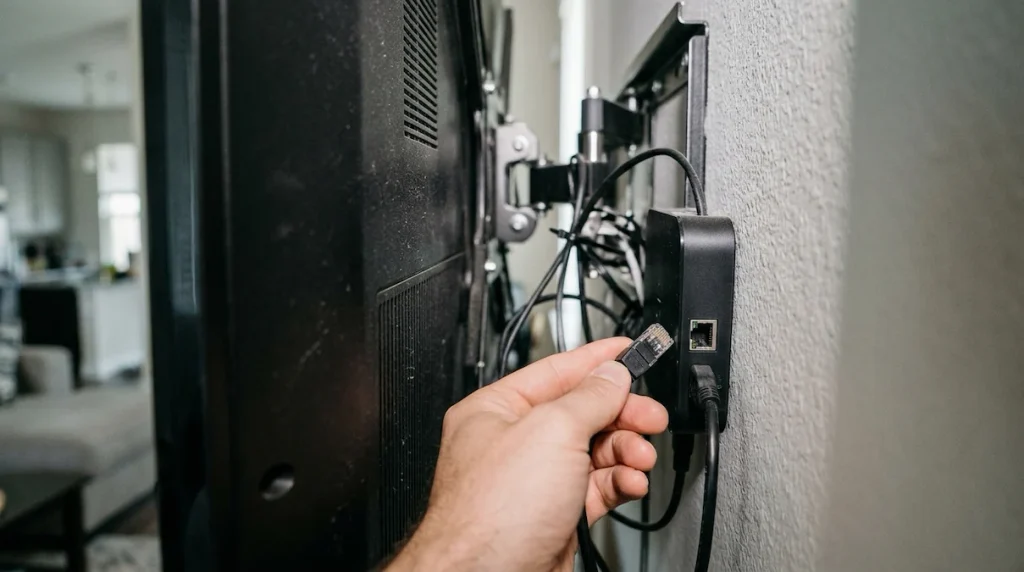
If you can, plug your streaming device straight into the router with an Ethernet cable. A wired link is more stable than Wi-Fi and is the single most effective fix for a stuttering stream.
| Connection | Stability | Best for |
|---|---|---|
| Ethernet | Very stable | 4K and live sport |
| 5 GHz Wi-Fi | Good, shorter range | Rooms near the router |
| 2.4 GHz Wi-Fi | Weaker, longer range | Far rooms, basic use |
Router and Network Fixes
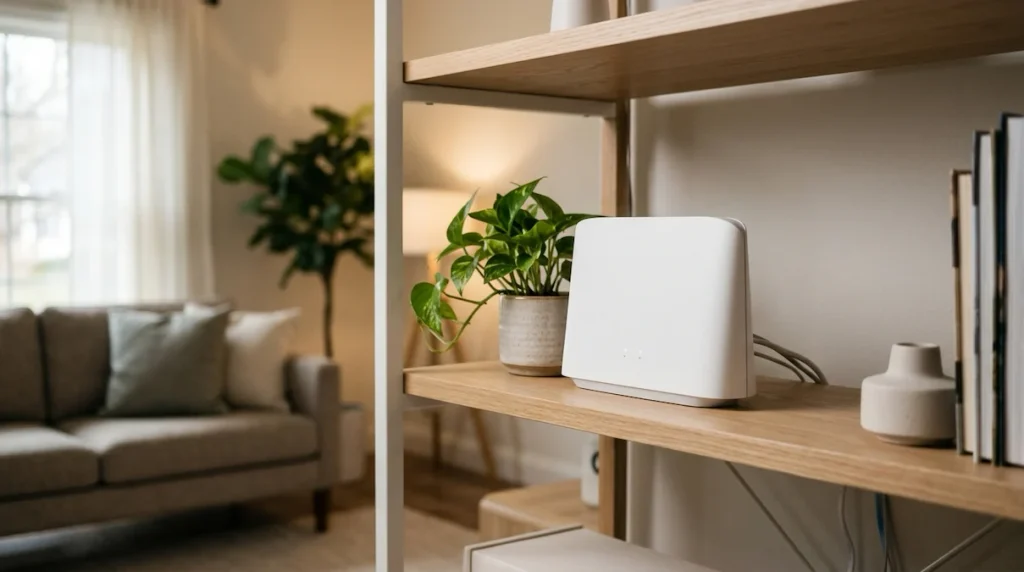
- Place the router in an open, central spot, not inside a cabinet.
- Use the 5 GHz band for devices close to the router.
- Add a mesh system or a powerline adapter for rooms with a weak signal.
- Reboot the router every so often to clear its memory.
Device and App Fixes
Sometimes the stutter is on the device, not the network. A few checks help:
- Close background apps to free up memory, then reopen your player.
- Clear the app cache, or reinstall the player if it has been unstable.
- Keep the app and device software updated.
- On a Firestick, free up storage, as a full device can stutter. Our Firestick IPTV setup guide covers this.
Does a VPN Stop IPTV Buffering?
Not usually. A VPN will not speed up a slow connection, and it can even add a little overhead. It only helps in one case: if your internet provider is deliberately slowing, or throttling, streaming traffic. In that situation a VPN may smooth playback, but it is not a general cure for IPTV buffering.
When to Contact Your Provider
If you have a fast, wired connection and a capable device, yet a single service still stutters, the problem is on the provider’s side. Their server may be overloaded or too far away. Contact them, ask for a closer server line, and judge how quickly they respond. A reliable service should fix this fast, and a good way to compare is to run an IPTV free trial before you commit. You can also check what IPTV actually delivers over your broadband.
How to Find the Cause of IPTV Buffering
The fastest way to diagnose the problem is to change one thing at a time and watch the result:
- Test on a wired connection. If the stuttering stops, your Wi-Fi was the weak point.
- Try a different device. If one struggles and another plays smoothly, the device is the cause.
- Drop the stream quality. If that helps, your connection simply lacks headroom.
- Watch at a quiet time of day. If late evenings are worse, the provider’s servers are congested.
Working through these checks in order usually points straight at the cause of your IPTV buffering, so you can apply the right fix instead of guessing.
Common Mistakes That Make Buffering Worse
- Relying on a weak 2.4 GHz Wi-Fi signal in a far room instead of going wired.
- Running several 4K streams and large downloads on the same line at the same time.
- Keeping an old, full device that cannot handle high-bitrate streams.
- Blaming the app first, when the connection or the provider is almost always the real cause.
- Comparing players rather than services. If you want a smoother option, our TiviMate guide is a good start.
If your provider throttles streaming traffic in the evening, a VPN can help. Our guide to the best VPN for IPTV in the UK compares fast options and explains when a VPN actually makes a difference.
Want to try it yourself? StreamoPro offers a free 24-hour trial, so you can test the channels and picture quality on your own TV before you pay anything. Get your free 24h trial on WhatsApp.
Frequently Asked Questions
Why does my IPTV keep buffering on a fast connection?
If your speed is good and you are wired in, the issue is usually the provider’s server being overloaded or distant. Ask for a different server line, or test another service.
What internet speed do I need to stop buffering?
Around 10 to 15 Mbps per HD stream and roughly 25 Mbps for 4K. A busy household needs more headroom, so add up every device that streams at once.
Does Ethernet really help with IPTV buffering?
Yes. A wired Ethernet connection is more stable than Wi-Fi and is the most reliable single fix, especially for 4K and live sport.
Will a VPN fix buffering?
Only if your internet provider is throttling streaming traffic. A VPN cannot make a slow connection faster, so it is not a general fix.
Why does buffering happen during live sport?
Live events put more people on the same servers at once, so congestion is more likely. A wired connection and a provider with strong servers make the biggest difference.
Conclusion
Most IPTV buffering comes down to your connection, so start there: test your speed, go wired where you can, and restart your router, device and app. Work through the fixes above in order and the majority of stutters disappear. If a fast, wired setup still struggles with one service, the provider is the weak link, and switching to a more reliable option is the real fix.
Leave a Reply