IBO Player is one of the most popular IPTV apps for Samsung and LG Smart TVs, where installing other players can be tricky. It uses a simple activation system: the app shows a code on your TV, and you add your playlist on a website rather than typing anything with your remote.
This guide explains what IBO Player does, how to install and activate it on Samsung and LG televisions, how to add an M3U or Xtream Codes playlist, and how to fix the issues people run into most often.
In short: IBO Player is a standalone media player for Samsung and LG Smart TVs. You install it from your TV’s app store, note the device key and MAC address it shows, then add your M3U or Xtream Codes playlist on the official activation website. It does not include any channels, so you need your own subscription.
Key Takeaways
- The app is a player only. You supply the playlist from your own provider.
- It is built for Samsung (Tizen) and LG (webOS) Smart TVs, with no sideloading needed.
- Activation uses a device key and MAC address entered on the official website.
- It supports M3U playlists and the Xtream Codes API, with EPG for a TV guide.
- There is usually a short free trial, then a small one-time activation fee per device.
Table of Contents
- What Is IBO Player?
- Features
- Setup: Getting Started
- How to Activate IBO Player
- Adding Your Playlist
- Supported Devices and Compatibility
- IBO Player vs Other Players
- Troubleshooting and FAQ
What Is IBO Player?
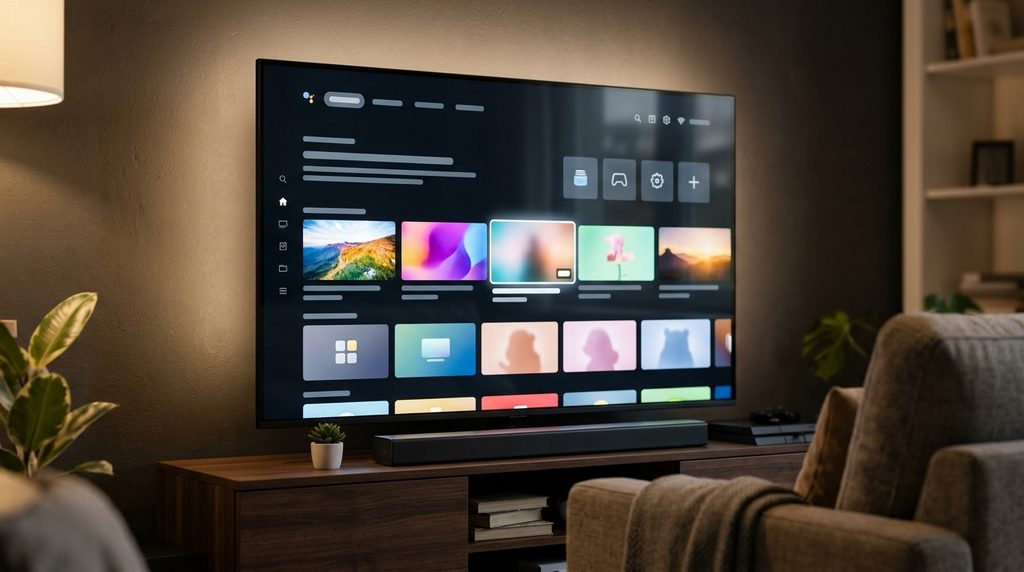
IBO Player is a media player designed mainly for Samsung and LG Smart TVs. It streams live TV, films and series from a playlist you provide, and it does not include any channels of its own. Everything you watch comes from an M3U link or Xtream Codes login that you add during activation.
What makes the app stand out is the setup. Many players are hard to install on a Smart TV, but IBO Player is available straight from the Samsung and LG stores, and you manage your playlist on a website instead of fiddling with the on-screen keyboard.
IBO Player Features
IBO Player keeps things simple while covering what most viewers need:
- M3U and Xtream Codes support: add your service with a playlist link or Xtream Codes details.
- Website-based management: upload and edit your playlist online, not on the TV.
- EPG support: an electronic programme guide when your provider supplies one.
- Live TV, films and series: content is sorted into clear sections.
- Native Smart TV apps: official listings for Samsung Tizen and LG webOS.
- Simple, remote-friendly layout: designed to navigate easily with a TV remote.
IBO Player Setup: Getting Started
Before you begin, make sure you have:
- An active IPTV subscription. If you have not chosen one, start with an IPTV free trial.
- Your M3U link, or your Xtream Codes username, password and server URL.
- A Samsung or LG Smart TV connected to the internet.
- A phone, tablet or computer to open the activation website.
Installing on Samsung Smart TV
- Open the Samsung Apps store on your TV.
- Search for the app and select it from the results.
- Choose Install, then open it once it has downloaded.
Installing on LG Smart TV
- Open the LG Content Store on your TV.
- Search for the app and open its listing.
- Select Install, then launch it when it is ready.
How to Activate IBO Player
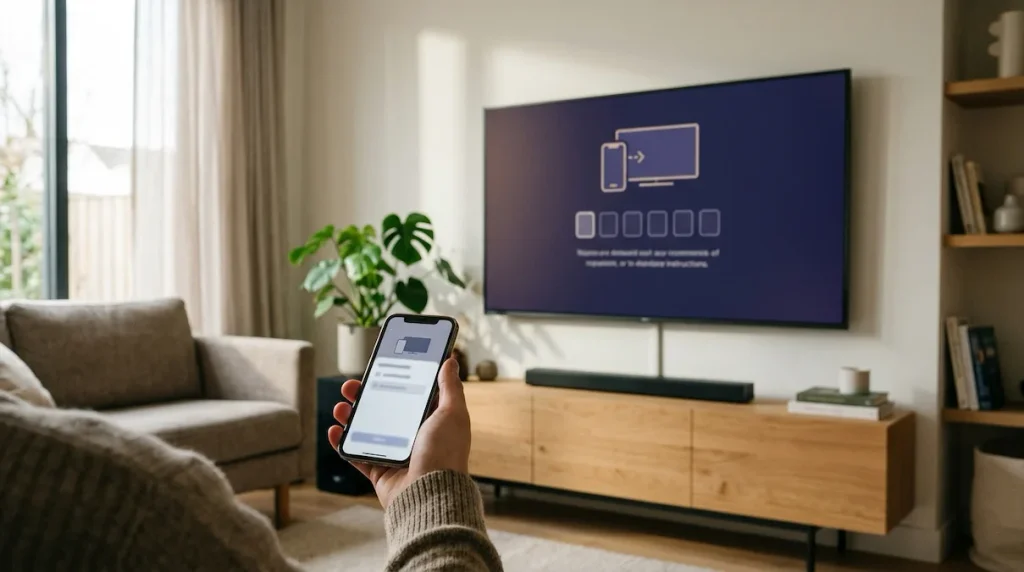
Activation is the step that surprises most new users, because you do it on a website rather than on the television. When you open the app for the first time, it shows a device key and your TV’s MAC address on screen. Keep that screen in view and follow these steps:
- On a phone or computer, open the official activation website shown on your TV.
- Enter the MAC address and the device key exactly as they appear.
- Add your playlist details (next section), then save.
- Back on the TV, reload or reopen the app to load your content.
There is usually a short free trial, after which a small one-time activation fee unlocks the device permanently. Always check the current price on the official site before you pay.
Adding Your Playlist
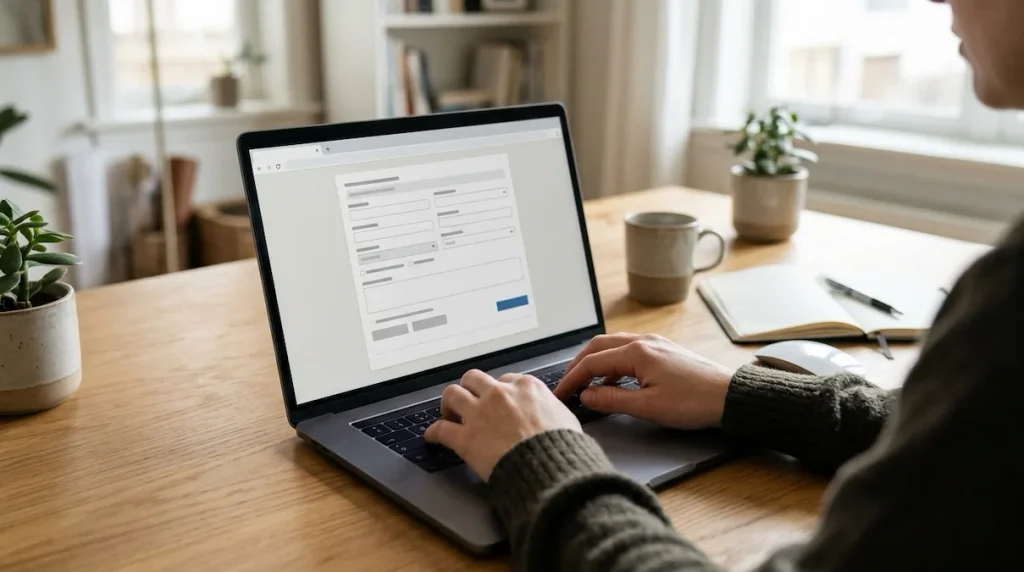
On the activation website, you can add your source using either method your provider gives you.
- M3U URL: paste your M3U playlist link and give it a name.
- Xtream Codes: enter your username, password and server URL.
- EPG: add your provider’s XMLTV guide link if you want a full TV guide.
Because the playlist lives in your online account, you can update it any time without touching the TV. That is handy if your provider changes your link or you switch services.
Supported Devices and Compatibility
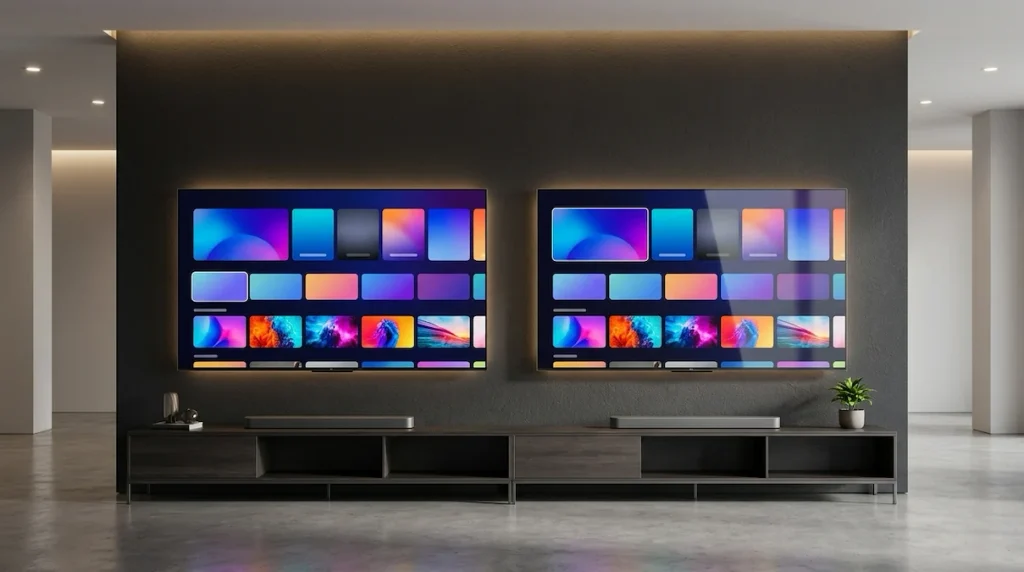
IBO Player is focused on Smart TVs, which is exactly where it is most useful:
| Device | Availability |
|---|---|
| Samsung Smart TV | Samsung Apps (Tizen) |
| LG Smart TV | LG Content Store (webOS) |
| Older TV models | May appear simply as “IBO Player” |
| Playlist management | Any phone or computer browser |
If your television cannot install the app, a streaming stick with a different player is a good alternative. Our Fire TV Stick setup guide covers that route.
IBO Player vs Other Players
How does it compare with other popular apps? The table below sets it against TiviMate and Smarters Player Lite.
| Player | Best for | Setup style |
|---|---|---|
| IBO Player | Samsung and LG Smart TVs | Device key on a website |
| TiviMate | Android TV and Fire TV | Playlist added in the app |
| Smarters Player Lite | Phones and tablets | Playlist added in the app |
Troubleshooting Common Issues
- Playlist will not load: re-check the M3U link or Xtream Codes details on the website, and confirm your subscription is active.
- Nothing changes on the TV: reload the app after saving, as it refreshes from your online account.
- Buffering: test your internet speed and move the TV closer to the router, or use a wired connection.
- TV guide is blank: add or update your EPG link, as the guide data comes from your provider.
Comparing options? Our IPTV Smarters Pro guide covers another popular player in detail.
Setting this up on an LG TV? Our IPTV on LG Smart TV guide shows how to activate IBO Player and add your playlist step by step.
Related guide: looking for a player that also works on iPhone? Read our GSE IPTV guide.
Want to try it yourself? StreamoPro offers a free 24-hour trial, so you can test the channels and picture quality on your own TV before you pay anything. Get your free 24h trial on WhatsApp.
Frequently Asked Questions
Is the app free?
There is usually a short free trial, followed by a one-time activation fee per device. Check the current price on the official website, as it can vary by region.
Does it include channels?
No. It is a standalone player and does not provide any channels. You add your own playlist from an IPTV provider.
Which TVs does it work on?
It is designed for Samsung (Tizen) and LG (webOS) Smart TVs, available from each brand’s official app store.
Why do I activate on a website?
It keeps your playlist in an online account, so you avoid typing long links with a remote and can update your details any time without touching the TV.
Can I use M3U and Xtream Codes?
Yes. You can add your service as an M3U link or with Xtream Codes details, and include an XMLTV EPG for the programme guide.
Tips for a Smooth Setup
A few small habits make the whole experience more reliable:
- Keep the device-key screen open while you work on the website, so you can copy the details exactly without mistakes.
- Use a stable broadband connection. Around 25 Mbps is comfortable for HD, with more headroom for 4K streams.
- If you own more than one television, remember that activation is usually charged per device.
- Save your provider details somewhere safe, so you can re-add them quickly if you ever reset the TV.
- Restart the television now and then to clear its memory and keep playback smooth during long sessions.
Final Thoughts
IBO Player is the easiest way to get IPTV running on a Samsung or LG television without sideloading. The device-key activation feels unusual at first, but it keeps your playlist tidy and easy to update. Pair it with a reliable service, add your M3U or Xtream Codes details, and it turns your Smart TV into a complete streaming hub.
Leave a Reply