In short: You can watch IPTV on Roku, but Roku has no proper IPTV player in its official store, so the most reliable method is screen mirroring from an Android phone or a Windows PC. A few basic M3U apps exist on the Roku Channel Store, though they are limited. For the smoothest experience, a Fire TV Stick or Android box is a better fit — but if Roku is what you own, this guide shows you how to make it work.
Roku is one of the most popular streaming platforms in the UK, so it is no surprise people want to run their subscription on it. The catch is that setting up IPTV on Roku is not as simple as on an Android device. In this 2026 guide we explain why, walk through every working method step by step, and help you decide whether Roku is the right box for the job.
Key takeaways
- Roku has no strong native IPTV apps like TiviMate or Smarters in its store.
- The most reliable method for IPTV on Roku is screen mirroring from a phone.
- You can also mirror from a Windows PC running an IPTV player.
- A few basic M3U apps exist on the Channel Store but are limited.
- For the best results, a Fire TV Stick or Android box beats Roku for IPTV.
Can you watch IPTV on Roku?
Yes — but with a caveat. Roku runs its own closed operating system, and unlike Android TV it does not allow apps like TiviMate, OTT Navigator or IPTV Smarters Pro to be installed directly. Roku tightly controls what goes in its Channel Store, and the handful of IPTV apps that do appear there are basic and can vanish without warning.
That does not mean Roku is useless for streaming your subscription. It simply means the easiest route to IPTV on Roku is to play the stream on another device and mirror it to your Roku. Once you know the trick, it only takes a couple of minutes to set up, and it costs nothing extra.
This is true across the whole Roku range — from the budget Roku Express to the Streaming Stick and the Roku Ultra, as well as Roku-branded TVs. They all share the same operating system, so the same limits and the same workarounds apply to every model. Whichever Roku you own, the methods below will work the same way, so you do not need to buy a newer or pricier Roku to get your subscription running.
What you need before you start
Before you set up IPTV on Roku, make sure you have a few basics in place. Getting these right first saves a lot of frustration later:
- An active IPTV subscription with an M3U link or Xtream Codes login from your provider.
- A Roku device and the Android phone or Windows PC you will mirror from.
- A stable Wi-Fi network — ideally 5GHz — that all your devices share.
- At least 25 Mbps of broadband speed for smooth HD, more for 4K.
With those ready, you can pick whichever method below suits you best.
Method 1: IPTV on Roku via phone mirroring
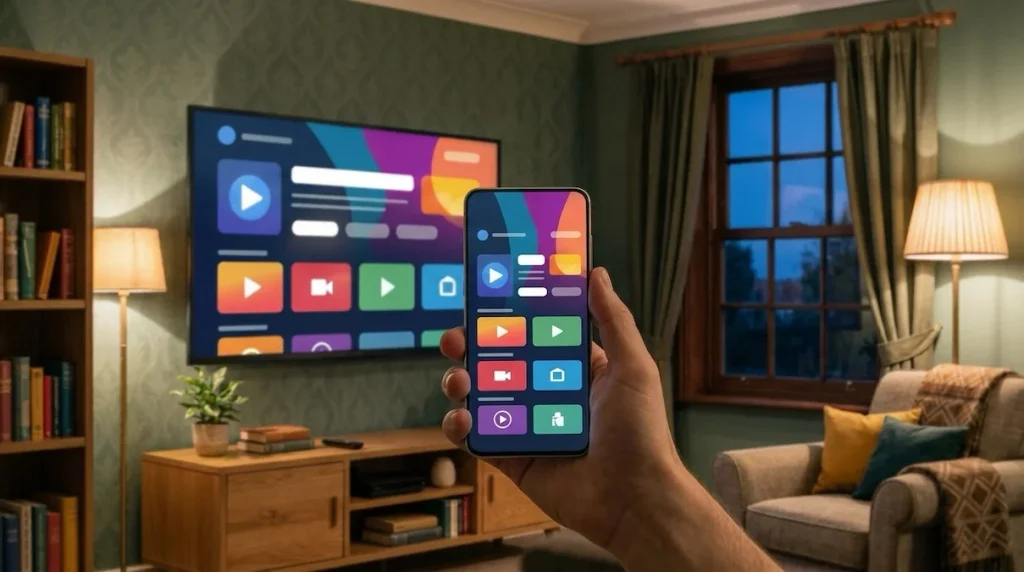
This is the most popular way to get IPTV on Roku. You run your IPTV app on an Android phone or tablet, then mirror the screen to your Roku over Wi-Fi. Here is how:
- On your Roku, go to Settings > System > Screen mirroring and set the mode to Prompt or Always allow.
- Make sure your phone and Roku are on the same Wi-Fi network.
- On your Android phone, open the Cast or Smart View option from the quick settings panel.
- Select your Roku from the list of devices.
- Open your IPTV app on the phone and start a channel — it now shows on the TV.
Any good Android player works for this. If you have not chosen one yet, our round-up of the best IPTV player for UK users and our OTT Navigator guide are great starting points. The main downsides are battery drain on your phone and a reliance on strong Wi-Fi. Roku’s own screen mirroring help page covers device compatibility if you get stuck.
Method 2: Mirroring from a Windows PC
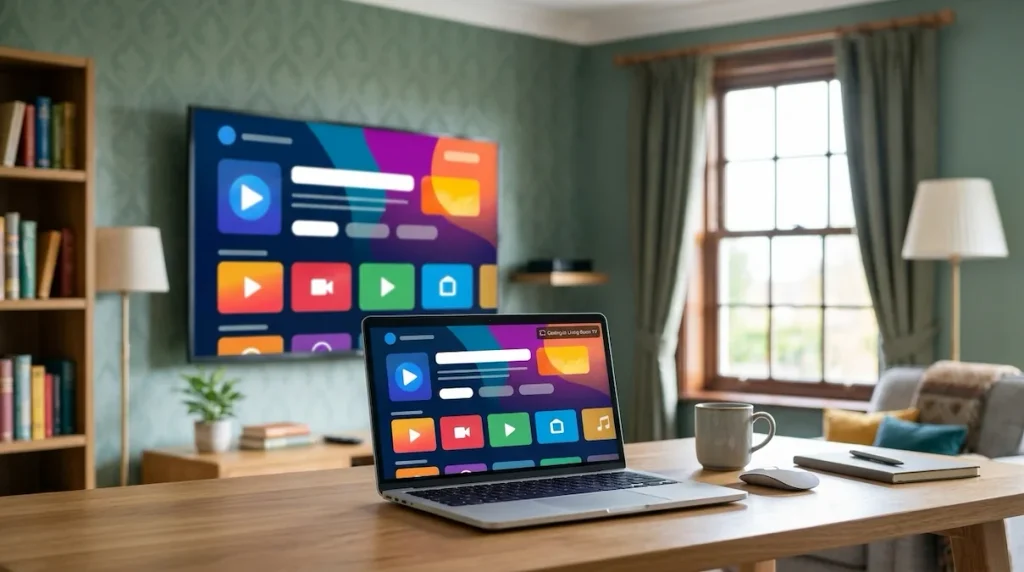
If you would rather not tie up your phone, you can mirror from a Windows 10 or 11 laptop instead. This is a tidy way to run IPTV on Roku using a bigger-screen player such as VLC or a web-based service.
- Enable screen mirroring on the Roku as in Method 1.
- On your PC, press Windows key + K to open the Cast panel.
- Choose your Roku from the list to connect.
- Open your IPTV playlist in your player and play it full screen.
The picture quality is usually excellent because a PC has plenty of power, though you will want a wired connection or strong Wi-Fi to avoid lag. This method is a favourite for people who want the sharpest possible picture on a big living-room TV.
Method 3: Roku Channel Store IPTV apps
There are a few simple IPTV apps on the Roku Channel Store that accept an M3U playlist URL directly. These let you watch without mirroring, which is handy, but set your expectations: they tend to be bare-bones, may lack a proper EPG, and can be removed by Roku at any time.
To try one, search the Channel Store for an “M3U” or “IPTV player” app, add it, then enter your provider’s playlist link. If it works well with your service, great — if not, screen mirroring remains the dependable fallback for IPTV on Roku. It is always worth testing a Channel Store app first, since watching without a second device is more convenient day to day.
A better alternative to IPTV on Roku
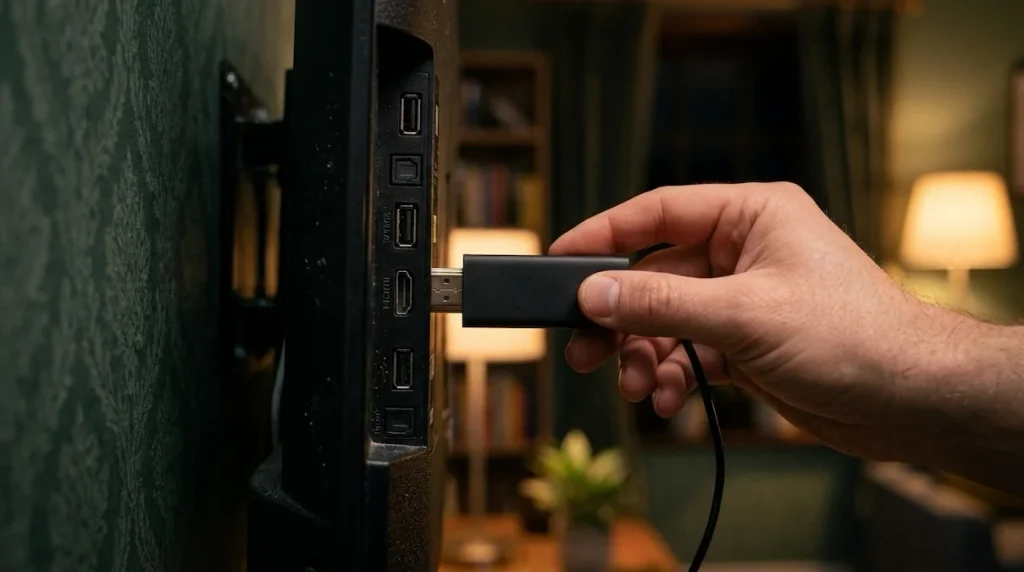
Here is the honest truth: if IPTV is your main reason for buying a streaming box, Roku is not the ideal choice. An Amazon Fire TV Stick or an Android TV box lets you install full-featured apps like TiviMate, OTT Navigator and IPTV Smarters Pro directly, with a proper TV guide, catch-up and no mirroring needed.
A Fire TV Stick costs little and transforms any TV into a proper IPTV machine. Our Fire TV Stick setup guide shows the whole process. Keep the Roku for Netflix and catch-up apps, and use a cheap stick for your subscription — it is the best of both worlds, and you avoid the mirroring faff entirely.
IPTV on Roku methods compared
| Method | Ease | Quality | EPG / guide | Best for |
|---|---|---|---|---|
| Phone mirroring | Easy | Good | From the app | Most people |
| PC mirroring | Medium | Very good | From the player | Big-screen quality |
| Channel Store app | Easy | Basic | Often none | Quick, simple use |
| Fire TV Stick instead | Easy | Excellent | Full EPG | The best experience |
Tips for smoother streaming
- Use 5GHz Wi-Fi for both the Roku and the device you mirror from.
- Keep devices close to the router to reduce stutter during mirroring.
- Close background apps on your phone or PC to free up power.
- Plug your phone in while mirroring to avoid battery drain.
- If the picture buffers, our fix IPTV buffering guide has a full checklist.
Thinking about an Apple TV instead of a Roku? See our guide to IPTV on Apple TV for the apps that work best on tvOS.
Want to try it yourself? StreamoPro offers a free 24-hour trial, so you can test the channels and picture quality on your own TV before you pay anything. Get your free 24h trial on WhatsApp.
Frequently asked questions
Does Roku have an IPTV app?
Roku has only a few basic M3U-based apps in its store, and no full-featured players like TiviMate or Smarters. For a complete experience, screen mirroring or a Fire TV Stick is better for IPTV on Roku.
Is screen mirroring to Roku free?
Yes. Screen mirroring is a built-in Roku feature at no extra cost. You only need your IPTV subscription and a phone or PC to mirror from.
Why is IPTV on Roku harder than on Firestick?
Roku uses a closed system and does not allow third-party IPTV apps to be installed directly. The Fire TV Stick runs on Android, so it supports the full range of IPTV players with no workarounds.
How fast does my internet need to be?
Aim for at least 25 Mbps for smooth HD, and more for 4K. A stable connection matters even more than raw speed when you are mirroring to Roku.
Final verdict
Watching IPTV on Roku is perfectly possible — screen mirroring from a phone is the quickest route, and PC mirroring gives the best picture. Just remember that Roku was never built for IPTV, so a cheap Fire TV Stick will always give a smoother, fuller experience with a real TV guide. If Roku is what you have, mirror away; if you are buying fresh, grab a stick and enjoy the easy life.
Leave a Reply