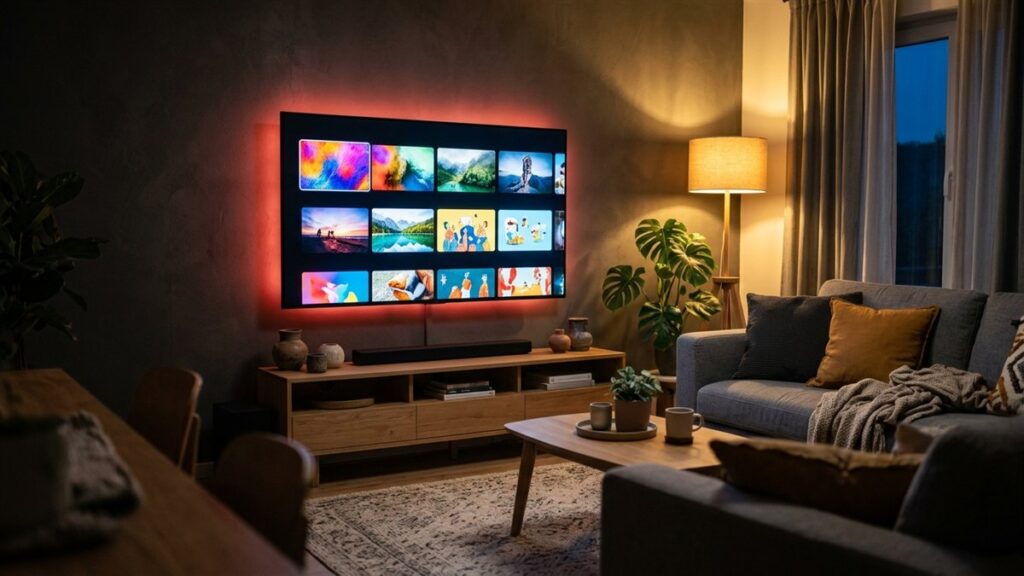
In short: SIPTV (Smart IPTV) is a lightweight media-player app for Samsung, LG and Android TVs that plays your own IPTV playlist — it comes with no channels of its own. You install the app from your TV’s store, note the on-screen MAC address, upload your M3U playlist on the siptv.app website, and your channels load within minutes. After a 7-day free trial, SIPTV asks for a small one-time activation fee per device.
If you own a Samsung or LG smart TV and want a clean, no-fuss way to watch IPTV without an extra box or stick, SIPTV is one of the most popular choices in the UK. This complete 2027 guide explains exactly what the app is, which devices it runs on, how to set it up step by step, what the activation fee covers, and how to fix the issues people run into most often — so you can get watching with as little fuss as possible.
Key Takeaways
- Smart IPTV is a player only — you still need your own IPTV subscription and M3U playlist.
- It runs on Samsung (Tizen), LG (webOS), Android, Google TV and Fire TV.
- Setup is handled through the app’s official website using your TV’s MAC address.
- There is a 7-day free trial, then a one-time activation fee of around €5.49 per device.
- Playlists can auto-update, so your channel list always stays current.
What Is SIPTV?
SIPTV, short for Smart IPTV, is an independent streaming app built for smart televisions. It is deliberately simple: the developer describes it as “just a media player”, and it includes no channels at all. What it does brilliantly is take an IPTV playlist from your provider and turn it into a tidy on-screen guide with live channels, films and series.
It is worth being clear on one point: the app itself is perfectly legal, because it is only a player. What matters is the playlist you load into it — always pair it with a legitimate, properly licensed IPTV service rather than a pirate source, and you stay on the right side of the rules while getting a far more reliable stream.
Because the app runs natively on Samsung and LG TVs, you do not need a Fire Stick, Android box or any other hardware. Everything sits on one screen and runs from a single remote, which is exactly why so many UK households prefer it. It has also been around for years and is updated regularly, so it tends to keep working as TV operating systems change. If you would rather use a free alternative, our guide to GSE Smart IPTV covers another popular player, and our roundup of the best IPTV players in the UK compares the main options side by side.
Which Devices Does Smart IPTV Support?
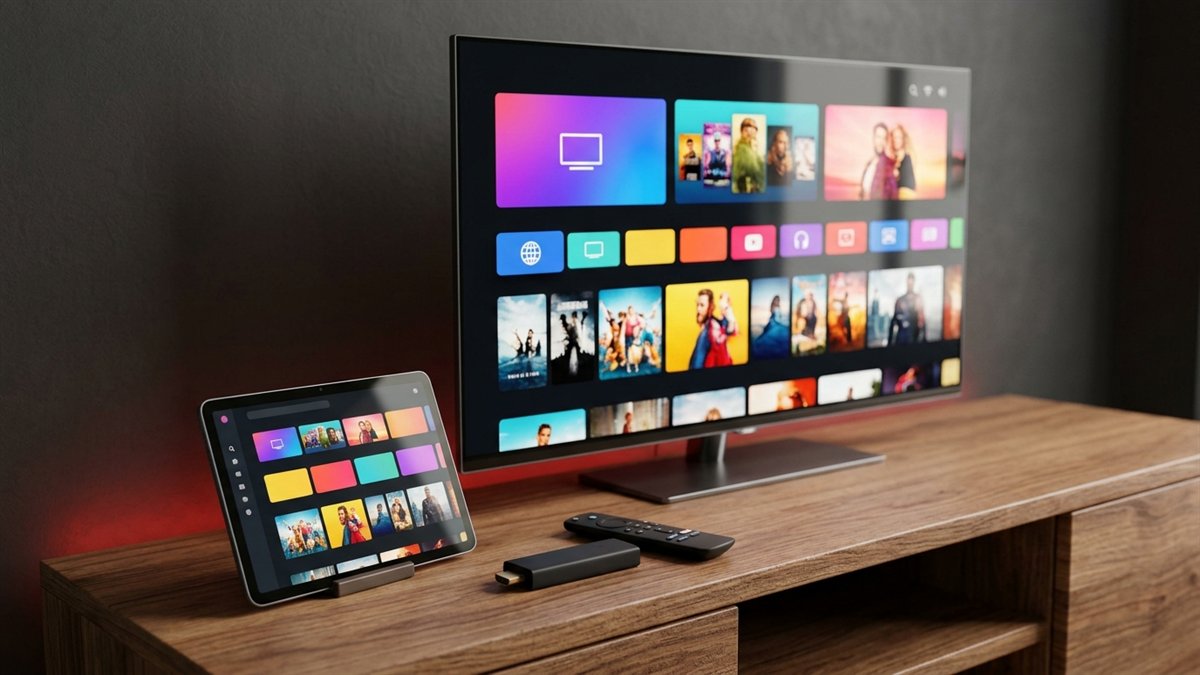
One of the big reasons the app is so widely used is its broad device support. It covers the two most common smart-TV platforms in Britain plus Android-based devices. Before you install it, check your TV model against the table below so you download the correct version.
| Device | Requirement | Notes |
|---|---|---|
| Samsung | Tizen 6.5 or newer (2022+ models) | Install fresh from the Samsung Apps store |
| LG | webOS 3.0 or newer | Older Netcast / webOS 1.0–2.0 use the legacy build |
| Android / Google TV | Android TV 5.0+ | Supports multiple external EPG sources |
| Amazon Fire TV | Fire OS (store or sideload) | Same interface as the Android build |
If your Samsung or LG set is more than a few years old, the app may still work, but you might need the older build listed above. When a television is simply too old to run it, an inexpensive Fire TV Stick is a reliable backup that gives you the same experience — see our Fire TV Stick setup guide for that route.
How to Set Up SIPTV Step by Step
Setting up SIPTV is quick once you know the order of steps. The key thing to understand is that you do not type your playlist into the TV — you link it through the app’s website using your TV’s MAC address. Follow these steps and you will be watching in a few minutes:
- On your TV, open the app store and search for Smart IPTV. Install the app.
- Launch it. On the welcome screen, write down the MAC address shown (it looks like 00:1A:2B:3C:4D:5E).
- On your phone or computer, go to the official siptv.app upload page.
- Enter your MAC address, then either upload your M3U file or paste your provider’s playlist URL with auto-update enabled.
- Save the playlist, then restart the app on your TV. Your channels and EPG will load automatically.
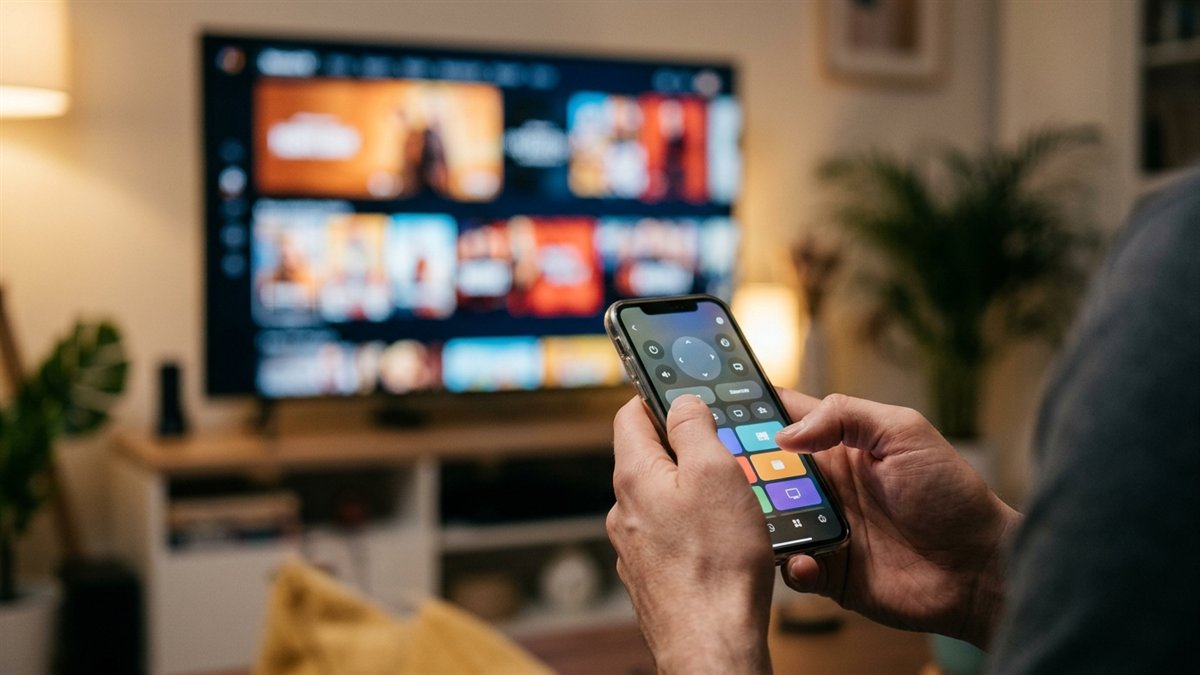
That is the whole process. Because the playlist lives online, any time your provider updates its channels the app refreshes them for you without another upload. You can always download the newest release from the official SIPTV website to make sure you are on the latest version.
SIPTV Activation and Cost Explained
SIPTV gives you a 7-day free trial so you can test everything before paying anything. Once the trial ends, the app asks for a one-time activation fee — usually around €5.49 per device — paid directly to the developer. This is a single lifetime payment for that television, not a recurring charge, which makes it far cheaper over time than apps billed every month.
It is important to understand that this activation fee is completely separate from your IPTV subscription. The developer charges it to keep the app running and ad-free; your provider charges separately for the actual channels. If you add the app to a second TV later, you pay the small one-off fee again for that device, because activation is tied to each TV’s MAC address.
Common Problems and How to Fix Them
Most installations work first time, but a few issues come up often. Here are the quick fixes for the problems people report most:
- Channels not loading: check that the MAC address you entered on the website matches the one shown on your TV exactly.
- Playlist expired: re-upload your M3U file, or enable auto-update so it refreshes on its own.
- Asked to pay again: the activation fee is per device, so each new TV needs its own one-off payment.
- Buffering or freezing: switch to a wired connection and lower the stream quality if your broadband is slow.
Tips to Get the Best from Smart IPTV
- Use a wired connection where you can. Ethernet into the TV is far more stable than Wi-Fi for live sport in HD or 4K.
- Enable playlist auto-update. This keeps your channels current and saves you re-uploading anything.
- Turn on the EPG. External EPG sources give you a proper TV guide with programme names and times.
- Sort your favourites. Editing the favourites list makes the channels you actually watch far quicker to reach.
- Fix buffering early. If streams stutter, our guide to fixing IPTV buffering walks through the quick checks that solve most issues.
Is SIPTV Worth It in 2027?
For Samsung and LG owners, SIPTV remains one of the cleanest, most reliable ways to watch IPTV in 2027. There is no extra hardware, the interface is simple, and the one-off fee is tiny compared with a monthly app subscription. The only thing the app cannot do is supply channels — that is where a good provider comes in.
If you have the app ready but still need a quality, reliable playlist to load into it, you can explore our IPTV plans and claim a free test — then simply upload the playlist using the steps above and start watching straight away.
Want to try it yourself? StreamoPro offers a free 24-hour trial, so you can test the channels and picture quality on your own TV before you pay anything. Get your free 24h trial on WhatsApp.
SIPTV FAQ
Does SIPTV include channels?
No. The app is only a media player. You supply your own IPTV subscription and M3U playlist, and it plays them. It never comes with any channels built in.
Is Smart IPTV free?
It is free for a 7-day trial. After that, there is a one-time activation fee of about €5.49 per TV, paid once to the developer. There is no monthly charge for the app itself.
How do I add a playlist?
You add a playlist on the app’s official website, not on the TV. Enter the MAC address shown on screen, then upload your M3U file or paste a playlist URL. Restart the app and your channels appear.
Does SIPTV work on Samsung and LG TVs?
Yes. SIPTV supports Samsung Tizen and LG webOS televisions, as well as Android, Google TV and Fire TV. Just install the version that matches your TV’s operating system.
Final Verdict
Smart IPTV is a smart, low-cost way to turn a Samsung or LG TV into a full IPTV player with no extra kit. Install it, link your playlist through the app’s website, pay the small one-off fee once your trial ends, and you are set. Pair it with a dependable provider and a wired connection, and you have a smooth, reliable streaming setup for 2027 and well beyond.
Leave a Reply